

The 8 Best Features That Come With NVIDIA GPUs
By Ritwik MitraJuly 9, 2026 10:02 am EST
NVIDIA has been shattering records since time immemorial. From powering more than 80 percent of the world’s 500 fastest supercomputers to becoming the highest-valued company in the modern era with a current market cap of nearly $4.8 trillion, NVIDIA has become one of the most dominant players in the tech industry. After making a name for itself as one of the best major graphics card brands in the industry, it circumvented other big players in the tech space during the AI boom and became the de facto supplier of superpowered chips to power data centers and cement the ever-increasing domination of artificial intelligence solutions.
There’s no doubt that trying to get your hands on an NVIDIA GPU right now will cost you an arm and a leg — an NVIDIA graphics card trend that is worrying consumers in 2026. However, an argument can be made that there’s no point waiting to buy a new graphics card … especially if you don’t want the rest of your PC to become obsolete during this wait. The suite of features the latest NVIDIA graphics card brings to the table is also industry-leading and revolutionary, and it will make both your gaming and other multimedia endeavors that much more engaging. There’s also the question of compatibility, where NVIDIA also has a slight but notable edge over its competitors. Even the most ardent AMD sympathizers tend to agree that most of the features that come packed with an NVIDIA GPU are the gold standard and something that any gamer worth their salt would be interested in. Below are some of the best of those features.
Ray Tracing and Path Tracing
Chesnot/Getty Images
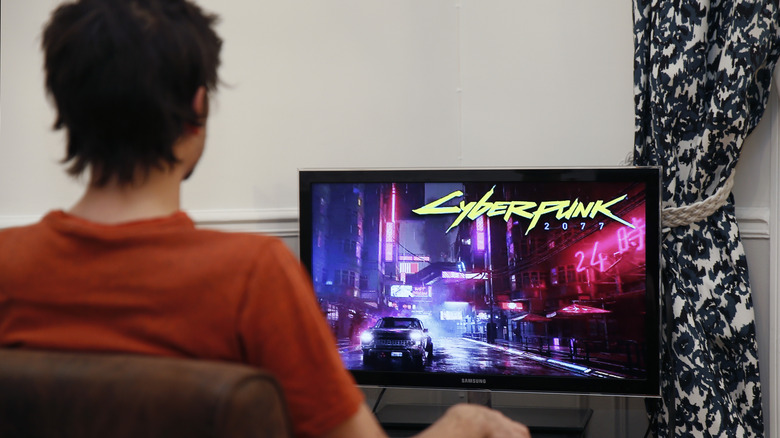
With the advent of the latest RTX (Ray Tracing Texel eXtreme) NVIDIA graphics cards, gamers were introduced to a whole new level of video fidelity that has turned into one of the biggest visual revolutions in the industry. Gone are the days when rasterization was the go-to lighting technique to make your video games look beautiful. Now, as the name suggests, Ray Tracing goes the extra mile by actually tracing the path of light rays from a light source for organic-looking lighting that breathes new life into a scene. It’s a far more advanced and realistic solution that more and more video games have started to adopt, ensuring that their visuals are as cutting-edge as can be.
Most RTX cards support Ray Tracing, but keep in mind that enabling this feature takes a heavy toll on your game’s performance. Some titles, like Control and Cyberpunk 2077, do justice to this technology and make it worthwhile for most gamers to take the performance hit if visuals are the utmost priority for them. Meanwhile, other titles like Elden Ring and Battlefield 2042 did a far poorer job of integrating this tech, making rasterized lighting a better solution while preserving some much-needed FPS (Frames Per Second).
NVIDIA has already introduced the next step in this tech, too, with Path Tracing going the extra mile and simulating how light bounces off surfaces to make for an even more elegant solution. Suffice it to say, this feature is even more performance-heavy, so only turn this on in supported games, such as the Overdrive Ray Tracing mode on Cyberpunk 2077, — if you’re willing to crank Deep Learning Super Sampling (DLSS) all the way up to the max to boost performance along with image quality
DLSS (Deep Learning Super Sampling) and Frame Generation
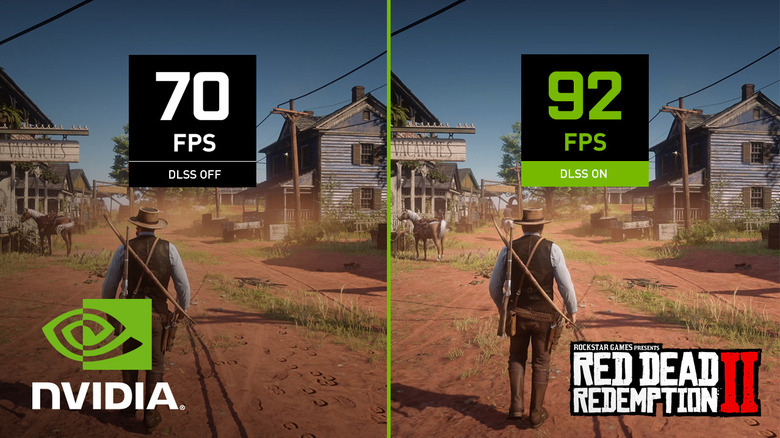
Despite the pushback against AI in the modern industry, this development has definitely powered one of NVIDIA’s best technological adaptations, letting weaker graphics cards run games at higher resolutions with a greater degree of detail without sacrificing FPS. DLSS has been revolutionary in unlocking better performance for games, running games at lower resolutions and upscaling them for better visual fidelity while also letting competitive multiplayer fanatics and performance seekers enjoy smoother gameplay. At this point, even people with the best rigs should ideally keep DLSS at the Quality setting (best visual fidelity, lowest performance boost) at the very least, since the spike in performance is genuinely incredible.
For anybody wondering what DLSS means in the context of an NVIDIA graphics card, it stands for Deep Learning Super Sampling. This technology has evolved by leaps and bounds, with DLSS 3 introducing Frame Generation. As the name suggests, it generates an extra frame in between regular rendered frames that further helps improve performance. The game runs at a lower resolution, and DLSS uses the AI-generated frames to upscale the graphics, albeit at the cost of higher input lag — something that could be overcome with features like NVIDIA Reflex or Ultra Low Latency Mode. DLSS 4 takes this a step further with Multi-Frame Generation, which creates even more AI-powered frames in between regular ones to make your video game feel smoother than ever before.
NVIDIA Reflex/Ultra Low Latency Mode
Bangla press/Shutterstock
Most people into multiplayer gaming are well aware of how damaging lag can be to their chances of emerging victorious. The difference between (virtual) life and death is a matter of milliseconds, and no gamer wants to curse their system for being too slow in registering their gamepad or mouse inputs. NVIDIA introduced a clever solution to this in the form of NVIDIA Reflex. This toggle is usually accessible from a title’s in-game settings, with most major AAA titles supporting this tech to let players enjoy a better and more responsive game feel as they mow down opponents with well-placed and accurate shots that take little to no time to execute.
In case your game doesn’t show any option for NVIDIA Reflex, it’s time to head into the settings of the NVIDIA graphics driver. Either change the Global Settings outright if you want low latency across all video games, or choose a specific program where you want to use this feature. Scroll down the list of available options until you see Low Latency Mode under the Feature column. From here, either turn it on or choose Ultra to reduce response time and make your gaming endeavors more satisfying — and, in the case of multiplayer games, less frustrating. That being said, keep in mind that this driver-enabled Low Latency Mode isn’t better than the in-game NVIDIA Reflex setting, so prioritize the former if it’s supported in the title you’re currently playing.
ShadowPlay and NVENC
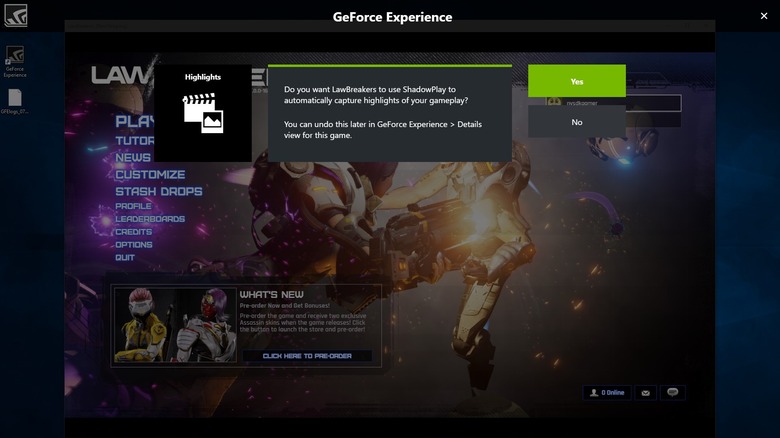
If you’ve gamed on a console like the PlayStation 5 or the Nintendo Switch, then you know how easy it is to record your game. Dedicated buttons and shortcuts let you take screenshots and record past gameplay instances with ease. In case you’re wondering how to achieve the same on your NVIDIA-powered gaming PC, then look no further than ShadowPlay. Accessing this feature is very simple — just open the GeForce Experience app, click on the Gear icon to access its settings, and enable the in-game overlay to get access to ShadowPlay controls. It uses Alt and Z as the default key binding to bring up this overlay in the game you’re playing, although you can always change this shortcut in settings to whatever you wish.
If you’re worried that ShadowPlay will impact your game’s performance, don’t fret — NVENC (short for NVIDIA Encoder) dedicates a section of the GPU to video recording. What this means is you can capture highlights, record current gameplay footage, and carry out livestreams without worrying about your game’s performance being hampered. These two features work in tandem to make it easier than ever for aspiring content creators — or people who just want to show cool gameplay clips or hilarious glitches to their friends — to record footage without worrying about taking a performance hit.
NVIDIA G-Sync
Most PC gamers have seen how irritating screen tearing can be in their games. This usually happens when the FPS of a video game isn’t in sync with your monitor’s refresh rate, causing weird lines to pop around the screen from time to time that can be quite distracting. To avoid this problem of screen tearing, most games let you turn on V-Sync, which makes an effort to match both the game’s and the monitor’s refresh rates to prevent this issue. However, this isn’t a perfect solution. While V-Sync prevents the game’s FPS from exceeding the refresh rate of your monitor or TV, things get more complicated when the former’s value drops below the latter. A significant dip can lead to screen stutter and lag, which is better off avoided.
This is where NVIDIA G-Sync comes into the picture. Instead of delivering the same half-baked results as V-Sync, this feature ensures that both your monitor’s refresh rate and your video game’s FPS values are in sync at all times. Both screen tearing and lag become a thing of the past as your games run smoother than ever with this tech, allowing you to push the graphical quality of the latest AAA games to the very limit without much risk of glitches in the (screen) matrix
Project G-Assist
Unlike the pick-and-play nature of console gaming, games on PC come with a wide array of settings that you can change to your heart’s desire. While this freedom of choice is certainly welcome, it can also be very overwhelming for people to tweak every visual setting under the sun … especially when all they want to do is jump into the game and wreck foes, solve puzzles, explore worlds, or do whatever else the gameplay loop has in store for them. If you don’t mind delegating this task to a chatbot powered by artificial intelligence that can pop up on the fly to give you the tips you need to maximize performance, then Project G-Assist is a great feature to test out.
AI chatbots may not be the best way to get information, but NVIDIA’s knowledge of gaming hardware, coupled with its presence as a leader in the realm of artificial intelligence, makes its AI-powered solutions more reliable for optimizing how your video games work. Simply install Project G-Assist and press the Alt and G keys together to bring up this chatbot overlay. Ask your queries and request recommendations to improve performance, and Project G-Assist will analyze the game to gauge the current metrics while recommending the best settings you should use to make your title run as smoothly as possible.
On top of all this, Project G-Assist isn’t just useful for optimizing your game’s performance — you can also use it to ask for in-game advice! Instead of having to fish out walkthroughs or guides when you’re stuck, just ask the chatbot for advice on how to get past a challenge, and it’ll search the internet to give you the answer you need
RTX HDR
While most of NVIDIA’s features are best suited for the latest AAA games that push the boundaries of modern graphics to their very limits, people who want to play older games with a fresh coat of paint don’t have to feel excluded in this regard … and no, we aren’t saying this because Portal got a Ray Tracing update. The company has made sure to cater to gamers of all kinds, with RTX HDR being a hidden NVIDIA GPU feature you need to start using sooner rather than later. It uses AI solutions to convert standard SDR (Standard Dynamic Range) games into HDR (High Dynamic Range) titles that look better than ever.
The most impressive part about this tech is how older titles don’t look so washed out anymore, making the act of replaying them feel like a new, fresh experience all over again. This is a problem that has plagued older SDR games on modern HDR-enabled monitors for a while, so gamers will be pleased to see the measures NVIDIA has taken to make these dated games more vibrant and modern-looking with RTX HDR
Maybe the best part about this tech is that it isn’t just limited to your video games. The advent of RTX Video HDR means that even your favorite TV shows and movies that are distributed in only SDR format can look better than ever before! This, coupled with the fact that most people find RTX HDR to be a vastly superior solution to Microsoft’s Auto HDR, makes RTX HDR one of NVIDIA’s best features with a wide array of possible use cases
DLDSR (Deep Learning Dynamic Super Resolution)
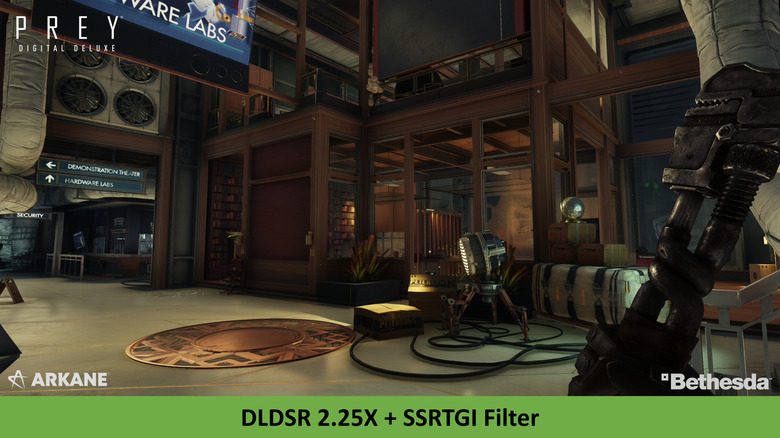
DLSS is great for people with 4K displays who want to enjoy games running at this resolution without sacrificing either visual fidelity or frame rate. Now, let’s look at the inverse — what about people with 1080p displays who want to enjoy sharper visual clarity, more so than what can be shown on their monitor? DSR (Dynamic Super Resolution) was the key to this, but it had a major impact on performance, so much so that even people with a bit of hardware headroom couldn’t make the most of DSR to enjoy crisper visuals.
Well, with the addition of AI-powered deep learning solutions, DLDSR (Deep Learning Dynamic Super Resolution) accomplishes a similar function with a vastly reduced impact on performance. With this tech, your NVIDIA GPU runs the game at a higher resolution — usually at either 1.78 or 2.25 times the base resolution, although Legacy Scaling offers more options — before downscaling it to be compatible with your monitor’s innate resolution. This helps ensure a crisper and more detailed image without taxing your hardware too much. If you have a state-of-the-art NVIDIA GPU, such as a current-gen RTX 5000 graphics card, then you should definitely try out this super sampling tech to unlock a new level of visual fidelity for your favorite AAA games.
