

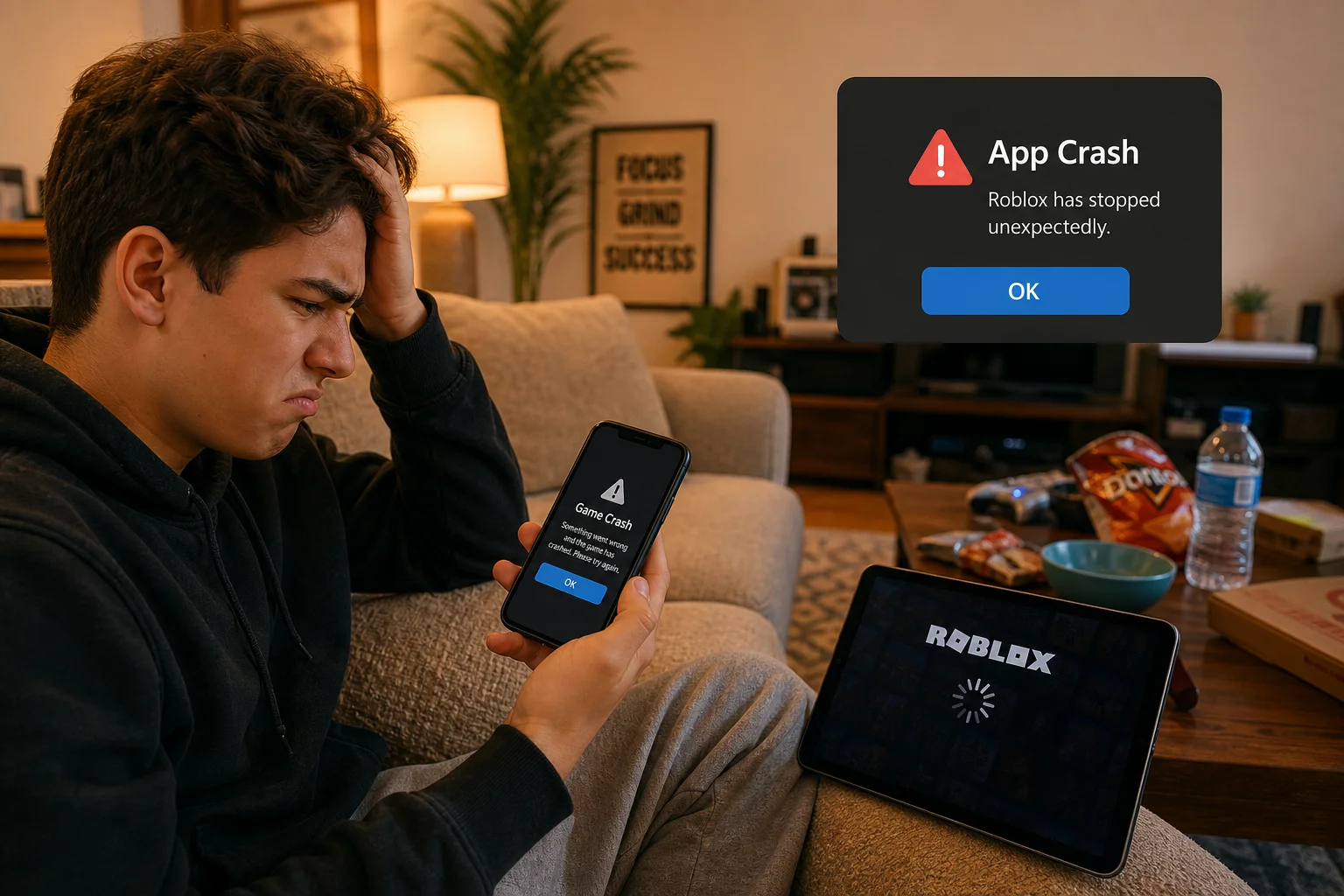
There’s nothing worse than finally getting a few minutes to play Roblox and watching it dump you back to your home screen the second it loads. Or worse, right in the middle of a round, when things were just getting good. If Roblox keeps crashing on your phone or tablet, take a breath. This happens to a ton of players, and it’s almost always one of a handful of problems you can actually fix.
You don’t need to be tech-savvy to sort this out, either. Roblox crashes on mobile are usually caused by low storage space, an outdated app, corrupted cache data, an older device struggling to keep up, or a shaky internet connection. We’ll walk through each cause and how to fix it on both iPhone and Android, so you can get back to playing.
Quick Checklist (Try This First)
Before you go digging into settings, run through these basics. Seriously, this fixes most Roblox crashes, and it takes about two minutes.
- Force-close and reopen Roblox: Swipe up (or double-tap the home button on older iPhones) to see your open apps, swipe Roblox away, and relaunch it. This clears out any temporary glitches from the current session.
- Check for a Roblox update: An outdated app is one of the most common crash culprits. Head to the App Store or Google Play and update if there’s a new version waiting.
- Restart your phone: Yes, the classic “turn it off and on again,” and you know how well restarting works on pretty much everything! It clears your device’s memory and can shake loose whatever was making Roblox misbehave.
- Check Roblox’s status page: If Roblox is having server issues on their end, no amount of troubleshooting on your phone will fix it. Pop over to status.roblox.com to see if there’s a known outage before you spend 20 minutes chasing a problem that isn’t yours.
If Roblox is still crashing after all that, it’s time to dig into the specific cause. Let’s go through them one by one.
Cause 1: Low Storage Space
- Roblox crashes right when a game finishes loading
- Your phone has been warning you it’s “low on storage” lately
- Other apps are also acting sluggish or failing to update
Why it happens: Roblox needs breathing room to download game assets and store temporary data while you play. If your phone’s storage is nearly full, Roblox can’t write the files it needs, and it crashes instead of loading.
On iOS
- Go to Settings > General > iPhone Storage.
- Wait for the list to load and see how much space is used versus available.
- Look for large, unused apps, old videos, or duplicate photos you can delete.
- Consider turning on Offload Unused Apps, which removes apps you haven’t used recently but keeps their data, so you can reinstall them later without starting over.
On Android
- Go to Settings > Storage (on some phones this is under Settings > Battery and device care > Storage).
- Review what’s eating up space: Photos, Videos, and Apps are usually the biggest offenders.
- Delete anything you don’t need, or move photos/videos to a cloud backup or SD card if your phone has one.
- Relaunch Roblox once you’ve freed up some room.
Verification: Try to keep at least 1–2GB of free space available (Roblox itself is a few hundred megabytes, but individual games can download a fair bit of extra data). Open Roblox and load a game. If it launches and stays open without crashing, storage was your problem.
Cause 2: Outdated Roblox App
- Roblox crashes immediately on launch, before you even see the home screen
- You haven’t updated any apps in a while
- Friends on updated versions can join games you can’t
Why it happens: Roblox pushes out updates constantly to fix bugs and patch compatibility issues. If you’re running an old version, it may not work with the current game servers anymore, and the app can crash trying to connect.
On iOS
- Open the App Store.
- Tap your profile icon in the top-right corner.
- Scroll down to Roblox in the list of pending updates.
- Tap Update next to Roblox (or Update All if you’d rather knock out everything at once).
On Android
- Open the Google Play Store.
- Tap the search bar and type Roblox, or tap your profile icon and go to Manage apps & device.
- Find Roblox in the list and tap Update if one is available.
Tip: If you keep getting stuck in an “update loop” where Roblox asks you to update every time you open it, force-close the app completely after updating, then reopen it fresh instead of tapping straight back in.
Verification: Open Roblox and check that it loads to the home screen without crashing. You can also confirm the current version number in the app’s Settings menu if you want to double-check the update actually installed.
Cause 3: Corrupted Cache or App Data
- Roblox crashes randomly, even after updating and freeing up storage
- The app freezes on a loading screen and never progresses
- Crashes happen across multiple different games
Why it happens: Think of Roblox’s cache like a junk drawer of temporary files the app keeps around to load things faster. Over time, that drawer can get corrupted or jammed with bad data, and instead of speeding things up, it starts causing crashes.
On Android: Clear the Cache
Android actually lets you clear an app’s cache directly, which is the easiest fix here.
- Go to Settings > Apps > Roblox.
- Tap Storage.
- Tap Clear cache first and reopen Roblox to see if that solves it.
- If crashes continue, go back and tap Clear storage (sometimes labeled Clear data). This wipes Roblox’s local data and resets it like a fresh install; you’ll need to sign back in.
On iOS: Offload and Reinstall
iOS doesn’t give you a “clear cache” button like Android does. Apple just doesn’t expose that level of control over individual apps, so the closest fix is offloading (or fully deleting) and reinstalling Roblox.
- Go to Settings > General > iPhone Storage.
- Scroll down and tap Roblox.
- Tap Offload App. This removes the app itself but keeps some of your data, so it’s worth trying first.
- Reopen the App Store and reinstall Roblox.
- If crashes continue, go back into iPhone Storage > Roblox and tap Delete App instead, which wipes everything, then reinstall fresh.
Tip: Reinstalling means logging back into your Roblox account, so make sure you know your username and password (or have your linked email/phone handy) before you delete the app.
Verification: After clearing cache (Android) or reinstalling (iOS), log back in and load a couple of different games. If the random, cross-game crashing stops, corrupted data was the culprit.
Cause 4: Device Compatibility or Insufficient RAM
- Crashes happen mostly in newer, graphics-heavy games
- Your phone or tablet is several years old
- The device feels sluggish even outside of Roblox
- Other demanding apps or games also struggle on this device
Why it happens: Roblox games are made by independent creators, and some of them are seriously graphics-intensive. If your device’s processor or RAM (its short-term memory for running apps) can’t keep up, Roblox can crash trying to render everything at once.
- Check Roblox’s official Mobile System Requirements page to confirm your device and OS version are supported.
- Close other apps running in the background before you launch Roblox. Every app you’ve got open is competing for the same limited RAM.
- Lower Roblox’s Graphics Mode manually instead of relying on Auto:
- Open Roblox and join any game.
- Tap the three-line menu icon in the top corner.
- Go to Settings.
- Find Graphics Mode and switch it from Auto to Manual.
- Drag the Graphics Quality slider down a few notches.
Tip: Lower graphics settings won’t make your games look as sharp, but honestly, a slightly less pretty game that doesn’t crash beats a gorgeous one you can’t play.
Verification: Load a graphics-heavy game with the lowered settings. If it stays open where it used to crash, your device just needed a lighter workload.
Cause 5: Is It the Whole App or Just One Game?
- Roblox itself runs fine, but crashes only happen inside a specific experience
- Or the opposite: Roblox crashes before you even pick a game
Why it happens: This distinction matters, and it’s an easy thing to check. Individual Roblox games (“experiences”) are built by independent creators, not Roblox itself. A poorly optimized or buggy game can crash on its own, even when the Roblox app and your device are working fine.
- Open a few different, popular games (something well-established and heavily played, like an obstacle course or a big roleplay game).
- If those load and run fine, but one specific game keeps crashing, the problem is with that game, not your phone or the Roblox app.
- If Roblox crashes no matter which game you try, or crashes before you even get into a game, the issue is with the app or your device, and you should work through Causes 1–4 above.
Verification: You’ll know pretty quickly. Games that crash consistently while everything else runs smoothly are almost always a developer-side bug, not something you can fix from your end.
Error Messages and Quick Reference
| Symptom / Message | Likely Cause | Quick Fix |
|---|---|---|
| App closes instantly on launch | Outdated app or Roblox outage | Update the app; check status.roblox.com |
| Crashes only during game loading screen | Low storage space | Free up space on your device |
| Freezes or force-closes randomly across games | Corrupted cache/data | Clear cache (Android) or reinstall (iOS) |
| “Unable to Join Game” or connection drops mid-play | Weak Wi-Fi/cellular or VPN interference | Switch networks, disable VPN/Private Relay |
| Choppy performance, then crash, in graphics-heavy games | Older device / low RAM | Lower Graphics Mode to Manual, close background apps |
| Only one specific game crashes repeatedly | Bug in that game, not Roblox itself | Report it to that game’s developer |
| Update loop, app keeps prompting to update | Interrupted update install | Force-close and reopen after updating fully |
Platform-Specific Notes
On iOS
Apple’s sandboxing (its way of keeping apps isolated from each other for security) means you don’t get a manual cache-clear option like Android users do. If iOS-specific crashes persist after offloading and reinstalling, also check Settings > General > Date & Time and make sure Set Automatically is turned on. An incorrect date or time can genuinely cause Roblox to fail to connect and crash on load, which trips up more people than you’d expect.
For more detail straight from theort article
On Android
Android’s more open file system is why you get that handy cache-clear button. Use it liberally, it’s basically free troubleshooting. If you’re on a budget or older Android device, also check for a “battery saver” or “app optimization” setting that might be restricting Roblox’s background performance. Some manufacturers (Samsung, Xiaomi, and others) are aggressive about limiting re
Settings to Check
- Graphics Mode: In-game menu > Settings, switch from Auto to Manual and lower Graphics Quality if you’re on an older device.
- Automatic Date & Time (iOS): Settings > General > Date & Time, make sure it’s toggled on.
- Background App Refresh / Battery Optimization: Device settings, make sure your phone isn’t restricting Roblox in the background.
- VPN or Private Relay: Disable temporarily if you’re experiencing mid-game disconnects, then test again.
When to Contact Roblox Support or Report a Bug
If you’ve worked through storage, updates, cache, and device settings and Roblox is still crashing, it’s time to get Roblox itself involved. Reach out when:
- The crash happens specifically inside one game, not the whole app (report it to that experience’s developer through the in-game report tool or the game’s own community page).
- You’ve confirmed your device meets Roblox’s system requirements, updated the app, cleared cache/reinstalled, and it’s still crashing consistently.
- You suspect it’s a Roblox-wide issue affecting lots of players (check status.roblox.com first to confirm).
- Visit Roblox Support and search for your specific error or symptom.
- Use the in-app Report a Bug option under Roblox’s menu > Help, if available on your account.
- Check status.roblox.com before assuming the problem is on your end.
Prevention Tips
- Keep Roblox updated: Turn on automatic app updates in the App Store or Play Store so you’re never stuck on a buggy old version.
- Don’t let storage get too full: Do a quick storage clean-out every month or so, especially if you take a lot of photos and videos.
- Restart your phone regularly: A weekly restart clears out background clutter before it becomes a crash-causing problem.
- Lower graphics proactively on older devices: Don’t wait for crashes; if your phone is a few years old, set Graphics Mode to Manual from the start.
- Watch your network: Avoid playing on weak or overloaded Wi-Fi if you can help it; a wired or strong Wi-Fi connection beats spotty cellular data every time.
Frequently Asked Questions
Why does Roblox keep crashing on my phone?
It’s usually one of five things: low storage space, an outdated app version, corrupted cache data, a device that’s underpowered for the game you’re playing, or a shaky network connection. Work through them in that order and you’ll almost always find the culprit.
How do I clear Roblox’s cache on Android?
Go to Settings > Apps > Roblox > Storage, then tap Clear cache. If that doesn’t fix it, go back and tap Clear storage for a full reset (you’ll need to sign back in).
Why can’t I clear Roblox’s cache on iPhone?
iOS doesn’t give apps a manual cache-clear option the way Android does; it’s just not something Apple exposes to users. The closest fix is offloading or deleting Roblox under Settings > General > iPhone Storage, then reinstalling from the App Store.
How much storage does Roblox need to run smoothly?
The app itself is fairly small, but individual games can download extra assets as you play. Aim to keep at least 1–2GB of free space on your device at all times so Roblox has room to work with.
Is my phone too old to run Roblox?
Maybe. Check Roblox’s official Mobile System Requirements page to see current compatibility guidance. If your device technically meets the requirements but still struggles, lowering Graphics Quality manually usually helps a lot.
How do I lower graphics settings in Roblox on mobile?
Open any game, tap the menu icon, go to Settings, switch Graphics Mode from Auto to Manual, and drag the Graphics Quality slider down.
How do I know if it’s my device or the specific game that’s crashing?
Try a few different, well-established games. If they run fine and only one specific game keeps crashing, that game has a bug, so report it to its developer. If Roblox crashes across the board, the issue is with your app, device, or connection.
How do I report a Roblox bug or contact support?
Visit Roblox Support to search help articles, or use the in-app bug report option under the menu. For game-specific bugs, report directly to that experience’s developer instead.
Wrapping Up
Roblox crashing is frustrating, but it’s rarely a mystery once you know where to look. Nine times out of ten, it comes down to storage, an outdated app, cached junk, or a device that’s just getting old and tired. Work through the causes in order, and you’ll almost always land on the fix before you need to bug Roblox’s support team at all.
| Step | Action | Applies To |
|---|---|---|
| 1 | Force-close app, check for updates, restart device | iOS & Android |
| 2 | Free up storage space | iOS & Android |
| 3 | Update Roblox from App Store/Play Store | iOS & Android |
| 4 | Clear cache or reinstall | Android: clear cache; iOS: offload/reinstall |
| 5 | Check system requirements, lower Graphics Mode | iOS & Android |
| 6 | Test other games to isolate the cause | iOS & Android |
| 7 | Report bug or contact support | iOS & Android |
