


Many of the gadgets we use that have an operating system have a way to enable automatic updates. These update their software so you’re always on the latest version, enjoying the latest features, performance improvements, and security patches, and Sony’s PlayStation 5 is no different.
As long as the auto-update feature is enabled in settings and the PS5 is turned on, it’ll automatically pick up the latest update as soon as it’s available — no need to manually check. Furthermore, you can enable it so this happens in rest mode, when the PS5’s indicator light turns solid orange, so the console downloads and installs the update while you’re, for example, at work or asleep.
While automatic updates are enabled by default for every console, there are several scenarios where you can find them turned off. For instance, another user could have toggled them off in their profile, affecting you since this setting applies globally and is not tied to a single profile. You could have disabled it yourself and forgotten where to re-enable it since the PS5’s menus are so dense. Whatever the case, the toggle is easy to find. Furthermore, you might have to toggle some extra settings when you find that the automatic updates are disrupting your gameplay experience.
Enabling system and game updates on PS5
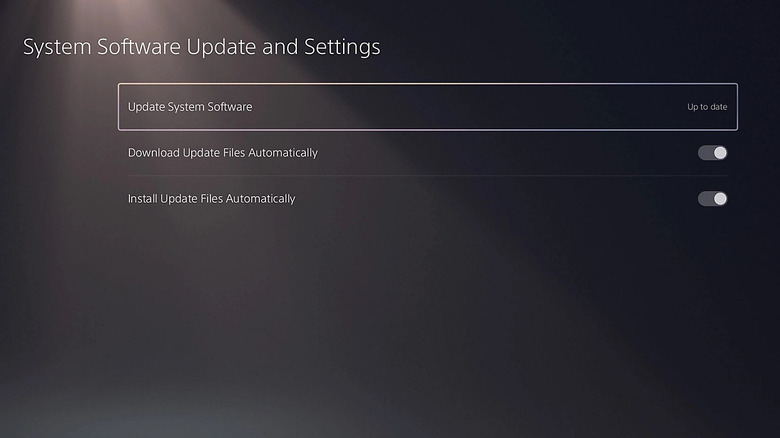
Automatic updates are a huge time saver. Remember, you can’t play an online game or visit the PlayStation Store on your PS5 if your console firmware isn’t updated. That means you’ll have to wait while it downloads the update so you can access these things. But if it all happens behind the scenes, especially in rest mode, you might experience no downtime.
To enable automatic updates on your PS5, do the following:
-
Select Settings.
-
Select System.
-
Select System Software.
-
Select System Software Update and Settings.
-
Toggle on Download Update Files Automatically.
To ensure that the PS5 updates system and game updates in rest mode or even downloads PS5 games when you’re not home so you can find them ready to play, do the following:
-
Go to Settings.
-
Select System.
-
Select Power Saving.
-
Select Features Available in Rest Mode.
-
Toggle on Stay Connected to the Internet.
You can also enable automatic updates for games as well. These ensure that you always have the latest patches that add new features, tweak the game balancing, or improve performance and stability, among other things. This is important, considering there are several instances of high-profile games launching broken, like “Cyberpunk 2077,” “Battlefield 2042,” and “Code Violet.” Also, a game’s online features don’t work if it’s outdated (even if the system is updated).
To enable automatic updates for games on your PS5, do the following:
-
Go to Settings.
-
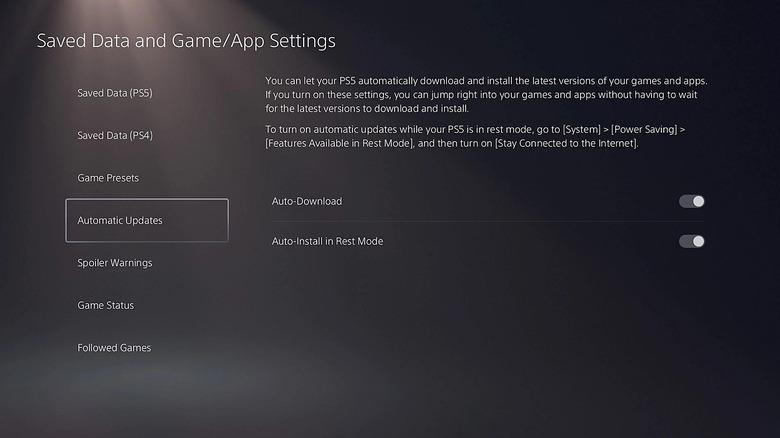
Select Saved Data and Game/App Settings.
-
Select Automatic Updates.
-
Enable Auto-Download.
Common problems with PS5 auto updates
People turn off automatic updates for several reasons, with data caps being the most common. If your internet data is limited, this might not be the best option, considering game updates can be as big as 50GB. Controlling the process yourself can also be a good idea if you want to see how other users are receiving the update, since some updates can introduce more problems before they’re patched later on. But as long as you have enough or unlimited internet data and you understand an update can sometimes lead to issues, it helps to have automatic updates enabled.
One thing that can cause a major interruption is when the system or game updates while you’re in the middle of a play session. For instance, Housemarque shared a post on X warning people to disable auto-updates so their run in “Returnal” isn’t interrupted after they release a patch. Games you left open, hoping to continue where you left off, can also be closed when the update happens in rest mode. This can lead to lost progress, which is especially frustrating in games with no autosaves like “Subnautica” and “Nier Automata.”
Luckily, you can tweak this behavior. In the same place where you enable system auto-updates, toggle off Install Update Files Automatically. For game auto-updates, toggle off Auto-Install in Rest Mode. Telling the PS5 to install an already-available update is significantly faster than waiting for the entire thing to download.

4 Comments
Pingback: Masaba Gupta takes a dig at Mrunal Thakur for calling Bipasha Basu muscluar - Comic Vibe
Pingback: Poonam Pandey says Swara Bhasker`s `tongue is bad` amid Padmaavat remark row - Comic Vibe
Pingback: Doctor Strange #10 Preview: Trust Issues With a Side of Doom - Comic Vibe
Pingback: Double Fine's first game after leaving Xbox is a chaotic bus - Comic Vibe