

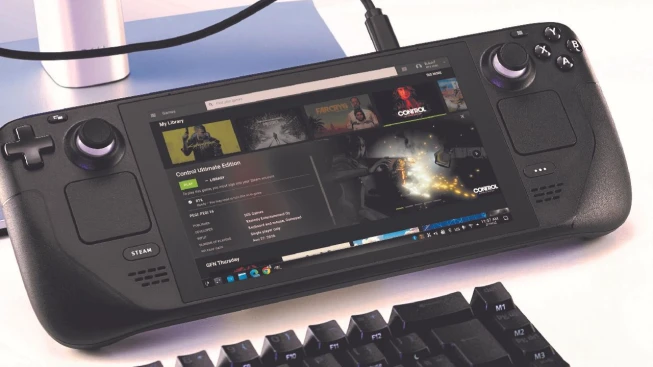
Helix SR introduces an alternative upscaling solution that brings NVIDIA DLSS technology to compatible AMD-powered Steam Deck games.
Steam Deck users now have an interesting way to experiment with NVIDIA’s DLSS upscaling technology through a community-developed plugin called Helix SR Manager. Although the handheld uses AMD hardware, the plugin lets compatible games use DLSS by translating AMD FSR 3.1 output. This can improve image clarity and add another upscaling option, though the extra processing adds some speed overhead.
Installing Helix SR Manager on Steam Deck
First, download the Helix SR Manager plugin and install it using Decky. Download the ZIP file, then open Decky, click “Install Plugin from file”, and choose the downloaded package. Helix SR Manager should then appear in your plugin list.
Open the plugin and select the version you want to install. After choosing the required version, press Download to retrieve its necessary files. Next, build Helix SR directly on the Steam Deck. Click on Build, and the plugin will tell you that it takes about 7 to 10 minutes. Start the installation and let it finish.
While this is happening, a progress bar shows how the installation is going. Testing showed that the build took approximately 8 minutes. Keep your Steam Deck powered on and avoid putting it to sleep. The fans may also become louder while the device handles the additional workload.
Installing Helix SR into Supported Games
After the build completes, select a compatible game from the plugin’s supported list. Helix SR does not work with every Steam Deck title. It works with games that support AMD FSR 3.1 and DLSS. The plugin takes FSR 3.1 output and converts it to DLSS, letting compatible games use NVIDIA upscaling technologies on AMD hardware.
One good example is The Witcher 3: Wild Hunt. Select the game from the supported list, check whether it works with FSR 3.1, and choose the option to replace the current upscaling implementation. Lastly, install Helix 2.0 and wait for the confirmation message.
Configuring DLSS and Testing Performance
Install Helix SR, start the game, and go to the graphics settings. Head over to the upscaling options and pick AMD FSR. That’s because Helix SR 2.0 takes the game’s FSR implementation as input and translates it to DLSS. Select FSR, then reopen the plugin to confirm Helix SR 2.0 is enabled for the current gaming session.
The visual enhancement can be noticeable, particularly with image sharpness. But performance demands some thought. Initial tests showed stuttering and variable frame rates. lsfg-vk seemed to conflict with the plugin.
With the game’s frame rate cap disabled, we got just over 40 fps with the settings we tested. Comparing the results against XeSS also showed a difference of around 5 fps. Switching back to regular FSR delivered approximately 45–46fps. DLSS can improve image quality but also adds significant processing overhead. The Balanced profile is worth considering if performance is limited.
Avoid lsfg-vk Launch Commands
One important discovery from subsequent testing concerns Lossless Scaling commands. Keeping lsfg-vk (Lossless Scaling Frame Generation Vulkan) commands in the game’s launch options can cause significant shimmering and unusual performance behavior, even when frame generation is not actively being used.
Removing lsfg-vk completely from the launch options resolved these issues. Therefore, avoid combining these launch commands with Helix SR if you want a more consistent experience.
Helix SR 3.2 Introduces FSR 4 Support
A newer version, Helix SR 3.2, also introduces an alternative approach using AMD FSR 4 instead of DLSS. Unlike version 2.0, this release does not require building the plugin directly on the Steam Deck. Simply download the version and select it for a supported game.
For DLSS, Helix SR 2.0 remains an option. Some users can also select DLSS directly through the game’s graphics menu, although compatibility appears inconsistent.
Ultimately, Helix SR is an interesting experiment in advanced upscaling on an AMD-powered handheld. For the best experience, we recommend turning on FSR upscaling with the Balanced profile. DLSS is impressive for visual quality, but you’ll want to weigh the performance cost and compatibility limits before making it your go-to.
No Data.

1 Comment
Pingback: How much would it cost to build a PC similar to the Xbox Series S? - Comic Vibe