

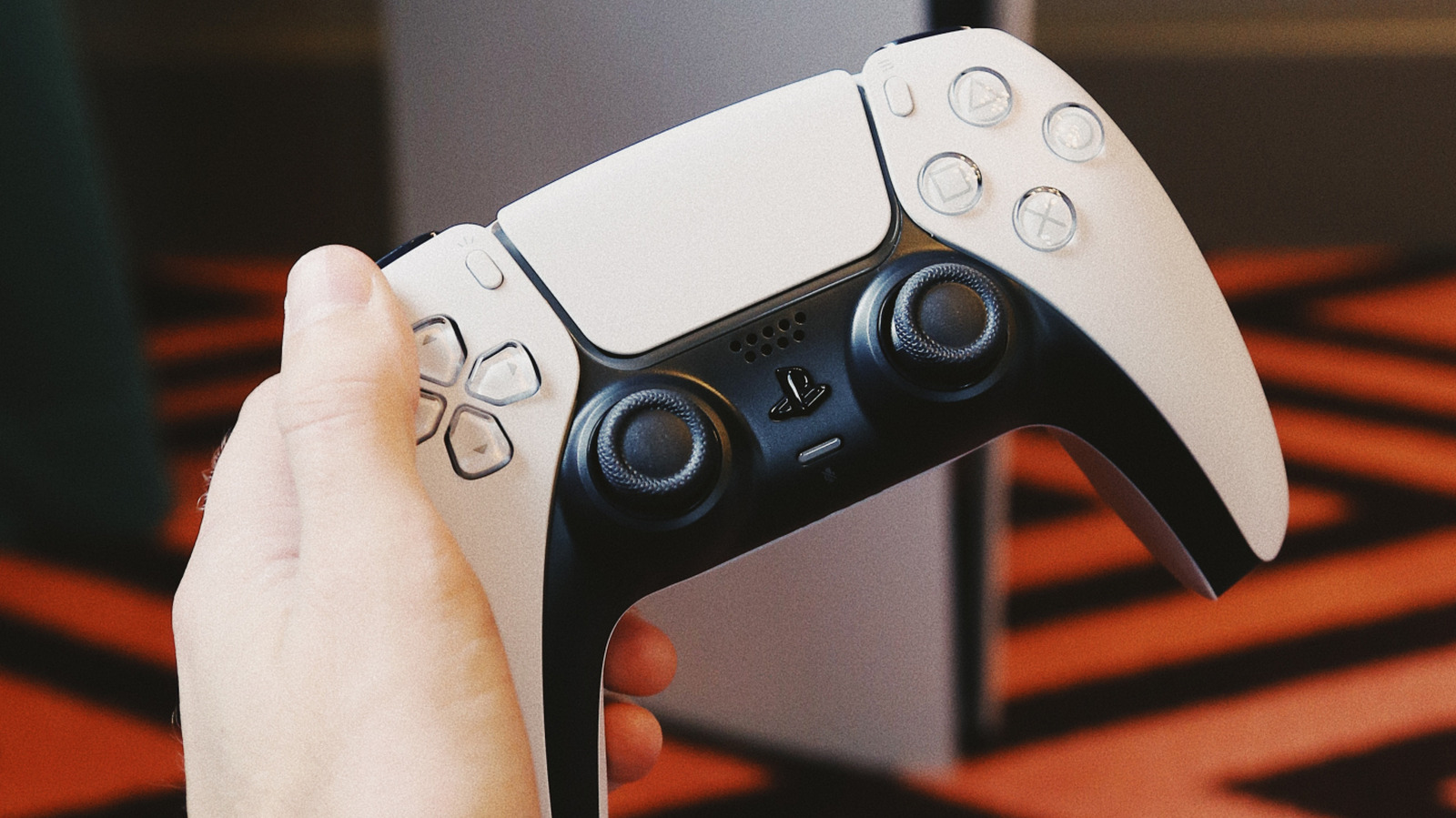
The DualSense was easily the best part of the entire PlayStation 5 package back when it was announced. Promising an evolution in terms of how haptics could enhance a player’s experience, the DualSense’s use of adaptive triggers and haptic feedback made it the very definition of a next-gen controller. Sony wasted no time in showing off just how impactful this controller could be, letting people download “Astro’s Playroom” for free and experience just how impactful the DualSense could be. “Marvel’s Spider-Man: Miles Morales,” “Ratchet and Clank: Rift Apart,” and “Returnal” soon followed, with these first-party Sony games showing off the qualities of the DualSense.
The impact of this controller was so immense that most people were perfectly happy with this cool PlayStation 5 gadget and its many perks, barely giving a thought to the many other features that the DualSense brought to the table. Sure, none of them sound as appealing or unique as its next-gen haptics, but any PlayStation gamer should still know the many ways the DualSense can optimize their gaming experience. From nifty system shortcuts to the many ways you can make your DualSense feel more impactful in your hands, there’s no shortage of ways your PlayStation controller can surprise you.
Long-press the mic mute button to enable a system-wide mute
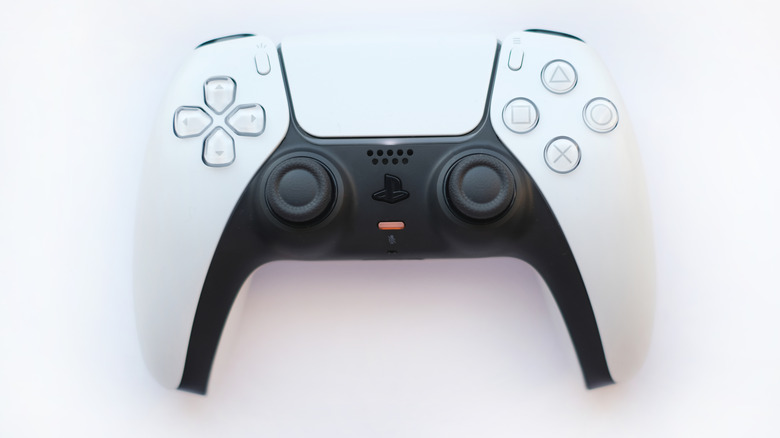
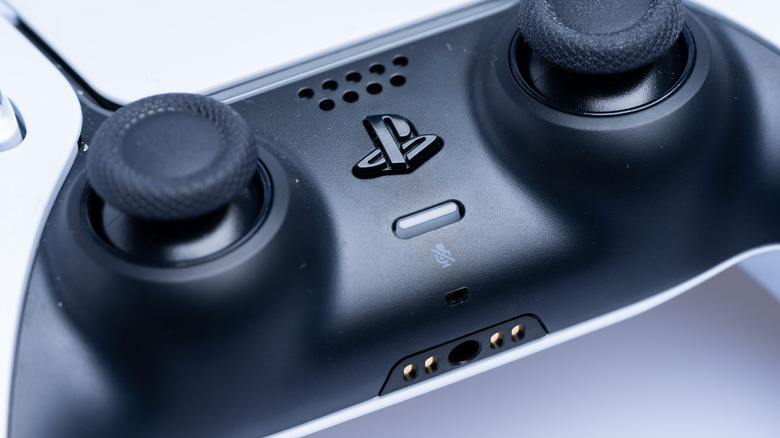
The DualSense is the first Sony controller to come with a built-in microphone. Not only does this let you interact with games in a unique way — such as blowing into the mic when prompted — it also lets everyone engage with voice chat without having to plug in a separate headset or microphone. Of course, if you don’t want your mic to rattle off without your knowledge, then you’re better off pressing the mute button under the PS icon to turn off your mic. You’ll know this is active when the LED in this button lights up to indicate the same.
What you might not know is that this mute button activates a secondary function. All you need to do is hold it down for a few seconds, and you can mute all PS5 audio. This includes all game audio, voice chat, any media playing on your PlayStation, and even the sounds from your controller. It’s a nice shortcut to use if the remote isn’t nearby and you need to turn down the volume.
Mute the DualSense to unlock the highest vibration setting
Avid Photographer. Travel The World To Capture Moments And Beautiful Photos. Sony Alpha User/
Speaking of the mic, this useful inclusion to the DualSense comes with a drawback you might not be aware of. Since it’s placed within your controller, the sound of the loud rumble motors and advanced haptics might be picked up if set at their highest setting. To avoid this, the PS5 automatically reverts to the lowest setting for your haptics when your mic is turned on, which is the default setting. It would’ve been nice if the console gave a notification informing you of the same… but the only way to figure this out is to go into your PS5’s settings and head to the “Controller (General)” section in “Accessories.” When you check both “Vibration Intensity” and “Trigger Effect Intensity,” you’ll see a hidden PSA stating that this setting automatically reverts to Weak when the mic is turned on.
Do yourself a favor and stop using the microphone on your PS5 DualSense controller. Just turn it off to enjoy the best PS5 games without any caveats. It’s quite puzzling that Sony made this the default instead of the exception, especially given their massive focus on single-player games — a strategy that still holds strong despite some major missteps in the live service department. If the repetition of having to mute the DualSense mic over and over again sounds grating, then settle for a more permanent solution here. From the settings page, head over to the “Microphone” section in “Sound.” You’ll see the “Microphone Status When Logged In” option, which should be set to “Mute.”
It can connect to your phone, smart TV, or the Steam Deck
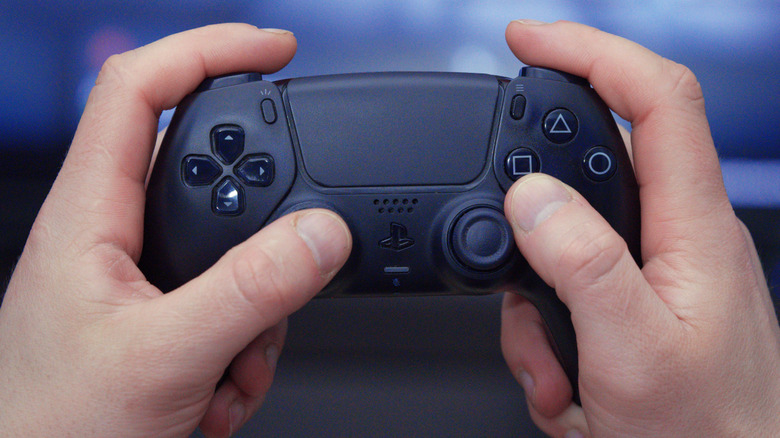
Most people understand that the DualSense can connect to both their PlayStation 5 and their PC. For people with both gaming systems, this is very helpful and even lets them check out any DualSense features on their PC, albeit only with a wired connection. However, most people tend to game on other systems – your phone, the Steam Deck, and even a smart TV or a streaming device support gaming features, and your DualSense hasn’t forgotten about them, either.
The process for this is similar to how you connect to PCs. Just hold down the PS and Create buttons for a few seconds until the LED on your PS5 controller starts blinking blue, indicating that it’s entered pairing mode. Now go to the list of available Bluetooth devices on the device of your choosing, and you should see “DualSense Wireless Controller.” listed. Just keep one thing in mind — to pair your PlayStation controller to your smartphone, your device needs to be running Android 12 or iOS 14.5 at the very least (for Apple tablets, iPad OS 14.5 or newer is required).
You can switch between multiple connected devices with a shortcut

After a July 2025 update, your DualSense gained the ability to connect to multiple devices at once, letting you switch between any paired systems on the fly. There are four slots that your DualSense assigns for connected systems, and you can manually choose between them by holding down an action button and the PS button at once to connect your controller. Your controller’s LED will blink once for triangle, twice for circle, three times for X, and four times for square. Holding down the PS and Share buttons also works, although this will assign a slot to your controller automatically, and you need to pay attention to the number of times your DualSense’s light blinks to know which face button has been picked.
Switching slots is as simple as holding the PS button along with the face button on the device you want to connect to. This way, you can use your DualSense along with all the gaming devices in your house without having to re-pair the controller over and over again — an agonizing process for anyone familiar with it.
The Create button’s functionality can be customized
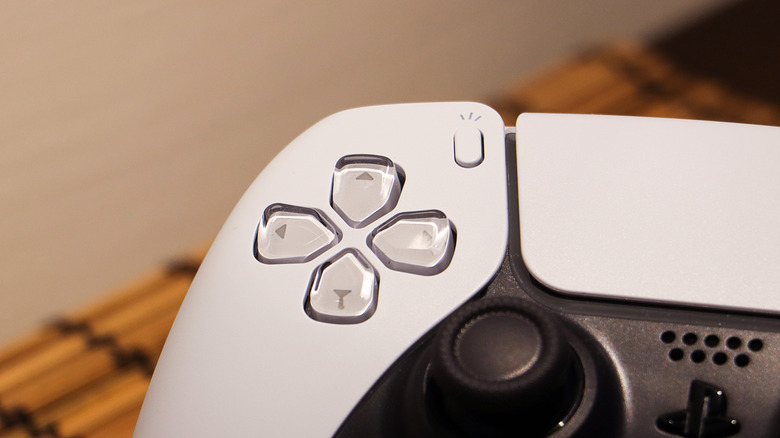
Removing the Select button for Share on the DualShock 4 was a contentious decision among fans, but it turned out to be a non-issue in hindsight. The touchpad ended up being every developer’s go-to menu button, and people who enjoyed sharing clips and screenshots appreciated this inclusion quite a bit. It evolved into the “Create” button on the DualSense, giving players more advanced options when it came to their captures. Pressing this button brings up the Create menu, holding it down clicks a quick screenshot, and double-tapping it records a short gameplay clip.
To change how these shortcuts operate, go to the “Captures and Broadcasts” section of your PS5’s settings. In the “Shortcuts for Create” option, you can change the button mapping to one of three presets — “Standard,” “Easy Screenshots,” which flips the functionality of the regular and long-time press of the Create button to let you take photos easily, and “Easy Video Clips,” which retains the previous shortcut’s button mapping while also letting you use the double-tap function to start or stop a recording.
Aside from this, you can also alter the default clip of a recording, choosing a time frame between 15 seconds and an hour. The save confirmation notification for videos and photos can also be toggled as per your preference. Go back to the previous page, and you’ll also find options to add HDR to screenshots and switch their formats — between JPEG and PNG. This format change applies to videos as well — WebM for efficiency and MP4 for compatibility.
The Triangle button is a convenient main menu shortcut
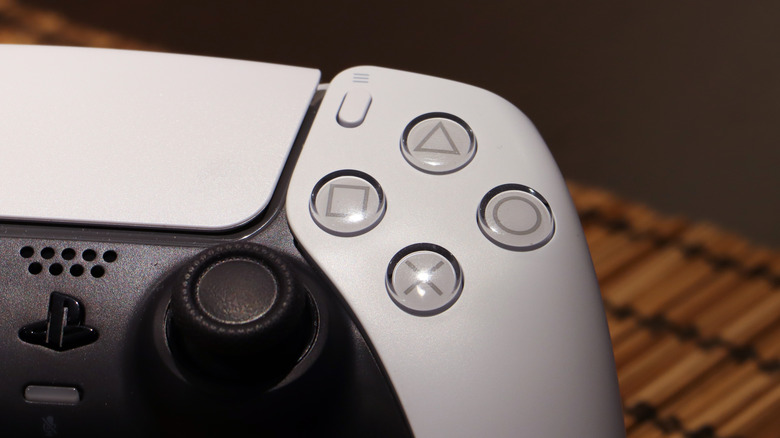
As simple as the triangle button shortcut may seem, most people are completely unaware of it. It’s simpler for them to use the D-pad and navigate the PS5’s menu, which can take a ridiculously long amount of time if you’re darting from one side of the screen to another. To minimize the time it takes for you to navigate screens, use the Triangle button for quick menu navigation.
Whether you’re on the main home screen or the PS Store, pressing Triangle instantly lets you jump over to the search bar. This is a great way to access settings — with the gear icon placed next to this search — or seek out the game or app of your choice. There’s no reason to be stubborn about navigating your console the old-fashioned way if you have such a nifty, underrated shortcut that saves your D-pad from being mauled over and over again.
Double-tap the PS button to access in-game hints
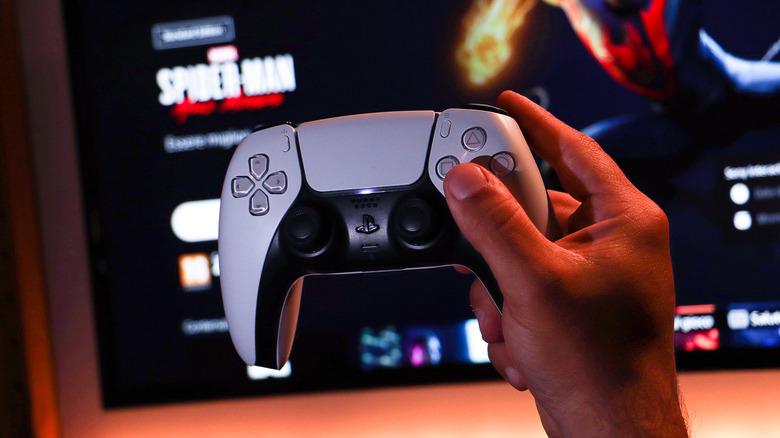
The reveal for the PlayStation 5 showed all the nitty-gritty of its control center, including the in-game hints that you can accessindividual sections, and you can get hints on how to make progress if you’re stumped in a particular location. This section also lets you track and figure out the way to earn trophies if you’re hunting down that elusive Platinum
While you can long-press the PS button to bring up the console control center and slowly navigate over to these game cards, why go through all that hassle when Sony has made it far, far easier for you to achieve the same? Just double-tap the PS button, and you’ll open the game hints section instantly. If you’re stuck in any game, this shortcut will help you out in a pinch.
Enable 3D audio on any pair of connected, wired earphones

Given its name, you’d assume that Sony’s Pulse 3D wireless headset is the only way to enjoy the Tempest Engine-powered three-dimensional audio on the console. Thankfully, that isn’t the case — with any pair of earphones, you can enjoy Sony’s 3D audio. The DualSense has a headphone jack that makes it easy to plug in a wired headset, although you can also use Bluetooth… provided you connect a separate USB adapter to your console that will help facilitate this connection.
Either way, once you’ve connected the earphones of your choice to your PS5, head to the Audio Output section of Sound in your console’s settings. From here, select the 3D Audio (Headphones) option, and you’ll see a bunch of relevant options. First, once you’ve plugged in your headphones, you can toggle the “Enable 3D Audio for Headphones” option. Keep in mind that the quality of this 3D audio varies from headset to headset, so do yourself a favor and choose “Listen and Compare” to see whether this audio setting suits this headphone, or if you should stick to regular stereo sound instead.
While a basic level of 3D audio has been enabled, you can go a step further with the “Create Personalized 3D Audio Profile” setting. This leads you through a seven-step process where you listen to sounds on your headphones and provide feedback on where they are originating in line with your spatial awareness. By creating this 3D profile for your headset, you can take your audio experience to greater heights.
Hold down the PS button to shut off the DualSense
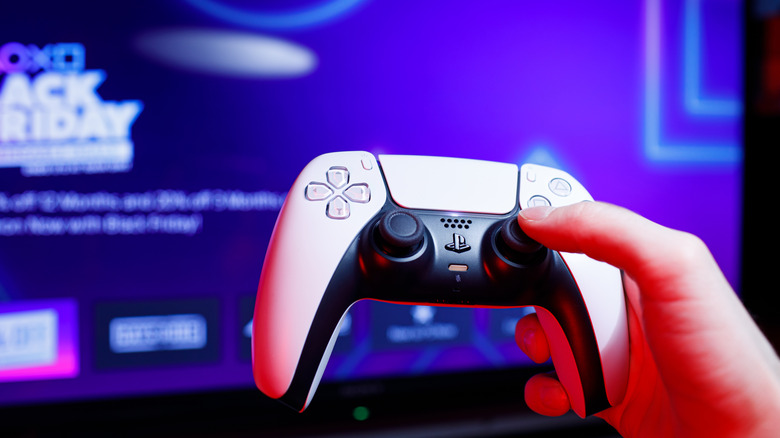
As great as the DualSense is, one problem fans absolutely detest is its abysmal battery life. A battery life of six to twelve hours isn’t the greatest, and it doesn’t help that users have talked about how their controller loses its charge even before reaching the six-hour mark. Sure, you can keep a USB-C charger handy or keep the console in rest mode with a cable attached to proactively charge your DualSense after every gaming session, but there’s always the possibility of you forgetting to plug it in, which can be pretty annoying further down the line, especially if you only have a single functional controller with your PS5.
One major reason why your PlayStation controller’s battery is dying too fast is probably that you keep it connected to your console for too long, even during times when you aren’t actively using the console. This is a common occurrence during parties, where people may move on from gaming on the PS5 without bothering to turn off the console or disconnect controllers. If the TV input source has switched before you could go into the command center and do the needful, there’s a nifty shortcut you can use instead. Just hold down the PS button for about 15 seconds on the DualSense you want to disconnect, and it’ll turn off without navigating the console menu.
Customize haptic feedback and adaptive triggers on PC with third-party software
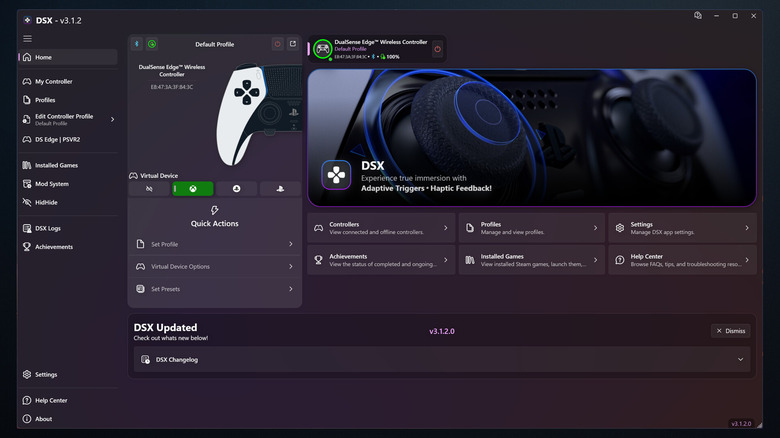
While your DualSense connects to PC normally — something we’ve discussed before — you can take things a step further by customizing everything from the controller’s light bar to the way its adaptive triggers operate for each game. This is usually achieved by robust third-party software, with DualSenseX (known as DSX on Steam) and TriggerSense being among the most popular options.
DualSenseX is a powerful piece of software that helps unlock the full features of this gamepad on your PC. The free version of this device is pretty basic and not recommended for people who want to maximize the experience of using their DualSense on the PC. In the paid version, you can configure how the haptic feedback works as per your preference. You can change the color of the light bar, and games lacking gamepad support can be used by mapping any keyboard and mouse inputs to the controller itself.
Another way to customize how the adaptive triggers of your DualSense work on PC is via TriggerSense. This tool lets you choose between multiple adaptive trigger presets — such as balanced, racing, or shooter configurations — or set up custom ones that make your triggers recoil, exhibit resistance, or only press down to a certain extent. Either way, TriggerSense has you covered and is perfect if you want uniform haptics but want the L2 and R2 buttons to work differently for each game you play on PC.

1 Comment
Pingback: The 62 Best Shows on Netflix Right Now (August 2026) - Comic Vibe