

It’s hard to believe, but your PlayStation 5 could be nearly six years old now and if you’ve had yours since launch, there’s a good chance you may have noticed your PS5 getting hot or overheating at some point.
If your PS5 fan is also getting particularly loud, you may be wondering how to stop your PS5 from overheating and whether there’s anything you can do to help keep your console cool.
There’s only so much you can do to stop your PS5 from overheating, especially when playing technically demanding games such as Rockstar’sGTA 6. Thankfully, there are plenty of things you can do to reduce the chances of your console getting too hot.
If you’re looking for a PS5 overheating fix, we’ve gone through some simple steps that should help, including keeping the PS5 in a well-ventilated area and cleaning out dust. That being said, let’s explain what to do to help prevent the worst from happening and what you should do if it does.
How can you tell if your PS5 is overheating?
When your PS5 has overheated to the extent that it needs to suddenly power off, it will most likely do so when you’re playing a game. On occasion, you might get an on-screen notification advising you to turn your PS5 off, as stated in the official console user manual. In my experience, despite encountering an overheated console, my PS5 has never given me this warning.
It’s a common belief that a loud fan means the PS5 is overheating, but that’s not always the case. After the console has booted back up, it will tell you to power off your console correctly – even though you had no control at that point – and it will repair the hard drive and rebuild the database.
However, if you encounter repeated shutdowns after relatively short playing sessions, it continues after the console has cooled and been repositioned, or if you notice unusual smells or touch the console and feel excessive heat, it might not be good. But let’s not jump to the worst-case scenario just yet.
Is a loud PS5 fan normal?
Yes, and whether it’s loud or quiet depends on the game you’re playing. For example, if you’re playing Call of Duty: Black Ops 7, the fan might get loud at some point. If you’re playing an indie game such as Vampire Survivors, it might be quiet. So, a loud fan doesn’t always mean your console is about to overheat. It’s just the cooling system doing what it needs to do at the time.
What should you do when the PS5 says it is too hot?
The first thing you should do is stop playing, especially if you’re greeted with that warning notification; in most cases, your PS5 will automatically shut down, giving you no choice in the matter.
If you do get that notification, select the option to turn the PS5 off through the power menu, so that it has a complete shutdown. Do not put it in Rest Mode or unplug any cables when the power indicator is still illuminated or blinking. Allow your console to cool, and consider moving your console to a better-ventilated area, assuming it’s not in the best location already. Also, be sure to check for dust in the vents and disc drive, and do not restart the console if it’s still hot.
How to stop your PS5 from overheating
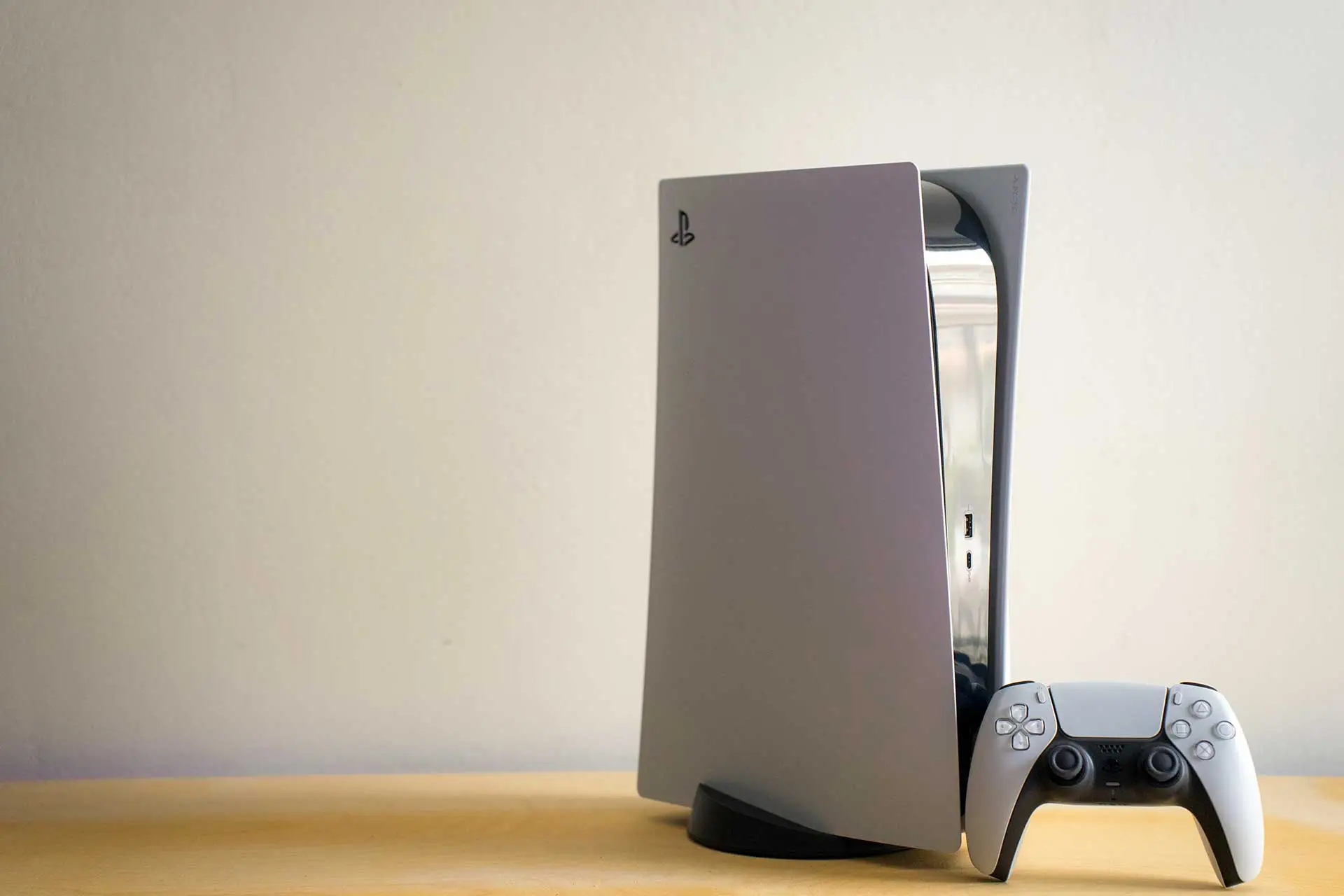
Once your PS5 console has cooled down and been safely restarted, make sure that your designated area has at least 10cm of space on each side. Also, do not place it on a fibrous carpet or thick rug, because that can increase console heat.
Do not place it in a narrow or closed cabinet, pressed firmly against a wall, or surrounded by a batch of cables that might obstruct its exhaust. Do not position it next to a radiator or in direct sunlight, and do not cover your console under any circumstances when switched on or in Rest Mode.
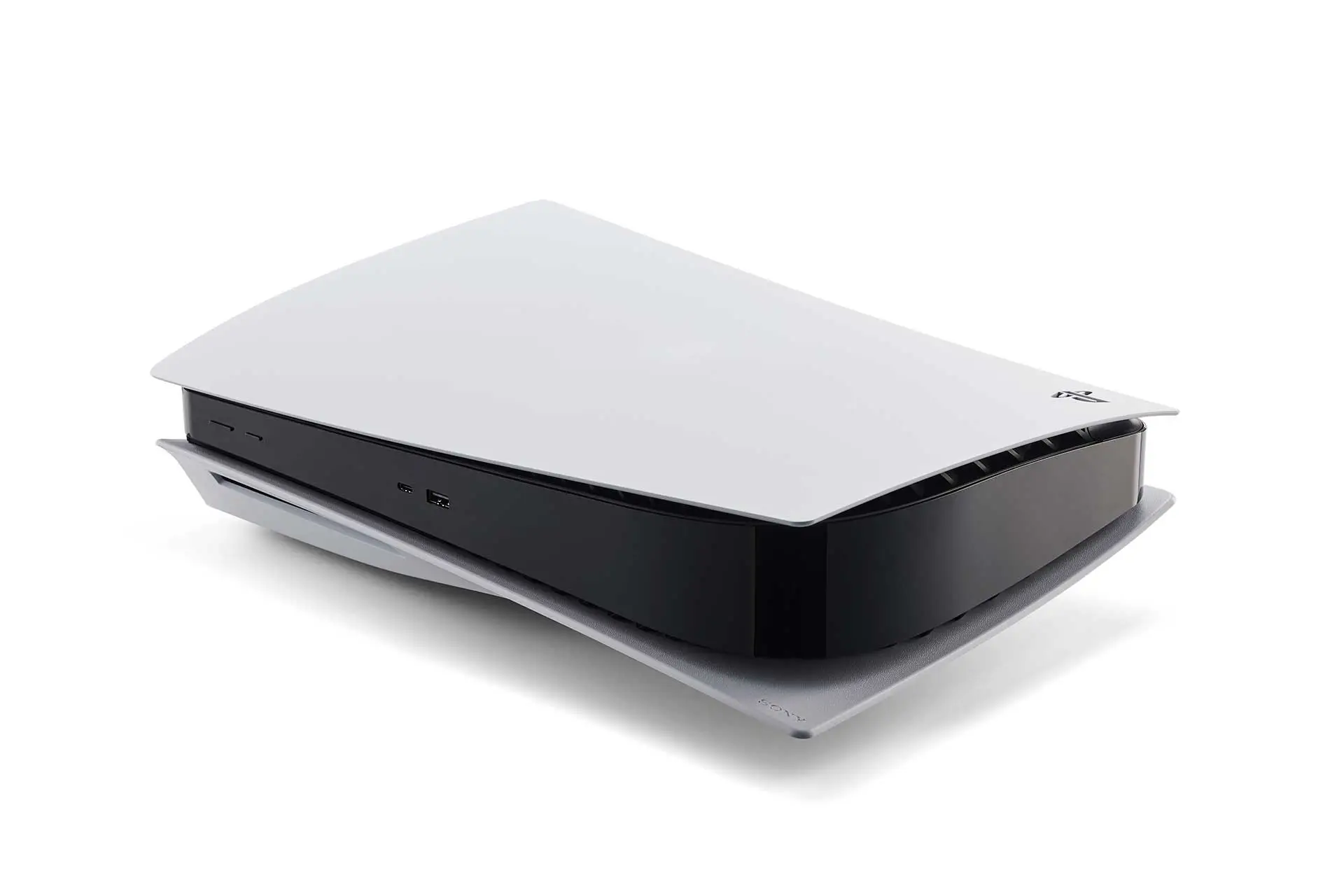
If you’re concerned about whether it’s best to place the console vertically or horizontally, fear not. The PS5 is deliberately designed for both. As long as it has at least 10cm of space on each side, it should be fine. Just make sure that it has an appropriate stand or feet for vertical and horizontal placement.
Clean dust from the PS5 air vents
This method is nice and easy. Simply power down your PS5 fully. Disconnect the cables, including the power supply. Wait for the console to cool down and then clean the vents with a low-powered cleaner. The Venom Games Console Handheld Clear is a great tool to use, or the Vcwtty Electric Air Duster for keyboards, to remove dust accumulated in and around the air vents. And be sure to wipe the surface of the console with a soft, dry cloth.
Under no circumstances should you use a powerful vacuum cleaner, aggressive compressed air cleaner, liquids or wet wipes. Do not dismantle the fan, heatsink, or power supply.
Use a low-powered vacuum cleaner such as the Venom Games Console handheld cleaner (UK) or the Vcwtty Electrice Air Duster (US) for keyboards to remove dust accumulated in and around the air vents.
- Amazon UK:Venom Games Console Air Duster | Rechargeable Mini Vacuum Cleaner | console air duster, rechargeable mini vacuum cleaner, dust removal, keyboard and console cleaning, cordless
- Amazon US:Vcwtty Electric Air Duster for Keyboard, 3-in-1 Replaces Canned Air | Delicate Electronics, Cordless Vacuum and Blower, Compact Handheld Mini, 12000PA, PC, Laptop, Desktop, Pet Hair, Car Interior
Which PS5 settings can help with overheating?
While it can’t hurt to have certain console settings enabled, this is a secondary method for dealing with an overheating problem and does not compensate for blocked vents, dust or defective hardware.
Use Power Saver in supported PS5 games
Go to your console Settings and select System. Select Power Saving. Choose ‘Power Save for Games.’ Now, turn on Power Saver for Games and select the supported games in your collection.
Keep in mind that not all games support Power Saver, and it could impact features such as enhanced graphics and framerate. It will also automatically disable VR mode, and should not be presented as a repair for persistent hardware overheating.
Should you use Performance Mode or Resolution Mode?
Neither setting helps with overheating more than the other. All they do is make Performance Mode prioritise smoother frame rates, while Resolution Mode prioritises graphics and resolution. The thermal result can vary from game to game. But if your console seems to have issues when one mode is activated, that’s perhaps something worth keeping in mind.
You can change these modes by going to Settings, Save Data and Game / App Settings, then Game Presets and selecting Performance Mode or Resolution Mode.
Should you disable 120Hz, VRR or 4K resolution?
120Hz: Try turning it off only if you have a problem that persists. If the console overheats when using this mode, that’s something worth keeping in mind. If you have a base PS5, perhaps this setting isn’t what’s best anyway.
VRR: Leave it on Automatic, because your console typically knows what’s best in this respect and will adjust accordingly. But if a problem persists, consider turning it off.
Resolution: Keep this on Automatic, because your console will determine the best setting game-by-game. The resolution is likely to have very little, if any, impact on overheating.
Video Transfer Rate: You only need to consider changing this mode if your display is constantly flickering. Otherwise, leave it alone, but it’s always best to follow Sony’s official guidance, just to be sure.
Can demanding games make a PS5 overheat?
Graphically demanding games can have an impact on how hard the cooling fan works. In most cases, the PS5 should be capable of running all games officially released on the console.
But there are some exceptions. For example, the boss fights in 2024’s Final Fantasy 16 were so intense that they were reportedly causing PS5s to overheat.
Why overheating may only happen with one game
If overheating persists with a particular game, first make sure that the game has the latest update installed. To do this, put the controller cursor over the icon of the game on the PS5 dashboard. Press the Options button and select Check for Update. If there’s a new update available, it will download and install for that game. There’s a chance that the game could have a bug yet to be ironed out.
You can also check if your PS5 has the latest system software installed. To do that, go to Settings, then System, select System Software, choose System Software Update and select Settings. Select System Update and then Update Using Internet.
Other measures to take include checking the developer’s official support channels for that game. Test another demanding game on the console to see if the overheating repeats. Note whether or not you get a crash, power loss or temperature warning. Try the game’s alternative graphics mode or use Power Saver if that game officially supports it.
Taking these measures will hopefully help you determine whether or not it’s a software crash or a game-specific fault.
PlayStation 5, Future Publishing
When should you contact PlayStation Support?
It’s recommended to repair the PS5 or use official assistance when:
- The PS5 console’s temperature warning is constantly returning.
- The console shuts down after cleaning and improving ventilation.
- It overheats during menus, streaming or light use.
- There is an unusual smell or abnormal sound.
- The console has suffered liquid or physical damage.
- Problems began after installing an M.2 SSD and continue after checking its installation.
Finally, you may need to dismantle the internal components to investigate further. It’s always a good idea to first check PlayStation Repairs, rather than using an unverified technician or repair tutorial.
What shouldn’t you do to an overheating PS5?
- Continue playing when you’ve had repeated warnings.
- Open the internal components without suitable expertise and knowledge.
- Remove or disturb the liquid metal thermal interface.
- Never block the vents with a cover when the console is powered on or in Rest Mode.
- Never assume that a third-party cooling fan will repair the fault.
Do external PS5 cooling fans work?
Sony’s official guidance does not state that a clip-on fan is necessary or effective without independent testing. I’ve tried a few of these over the years, and none have worked. All they’ve done for me is make my PS5 louder. The official guidance also focuses on unobstructed ventilation, sufficient clearance and cleaning dust.
Some accessories can obstruct the designed airflow or draw power from the console. If you really want to use a third-party accessory, make sure you do your research. I’ve often found that the lowest star on a customer review can be the most beneficial, rather than a glowing five-star.
Featured Image Credit: YELIM LEE/AFP
