

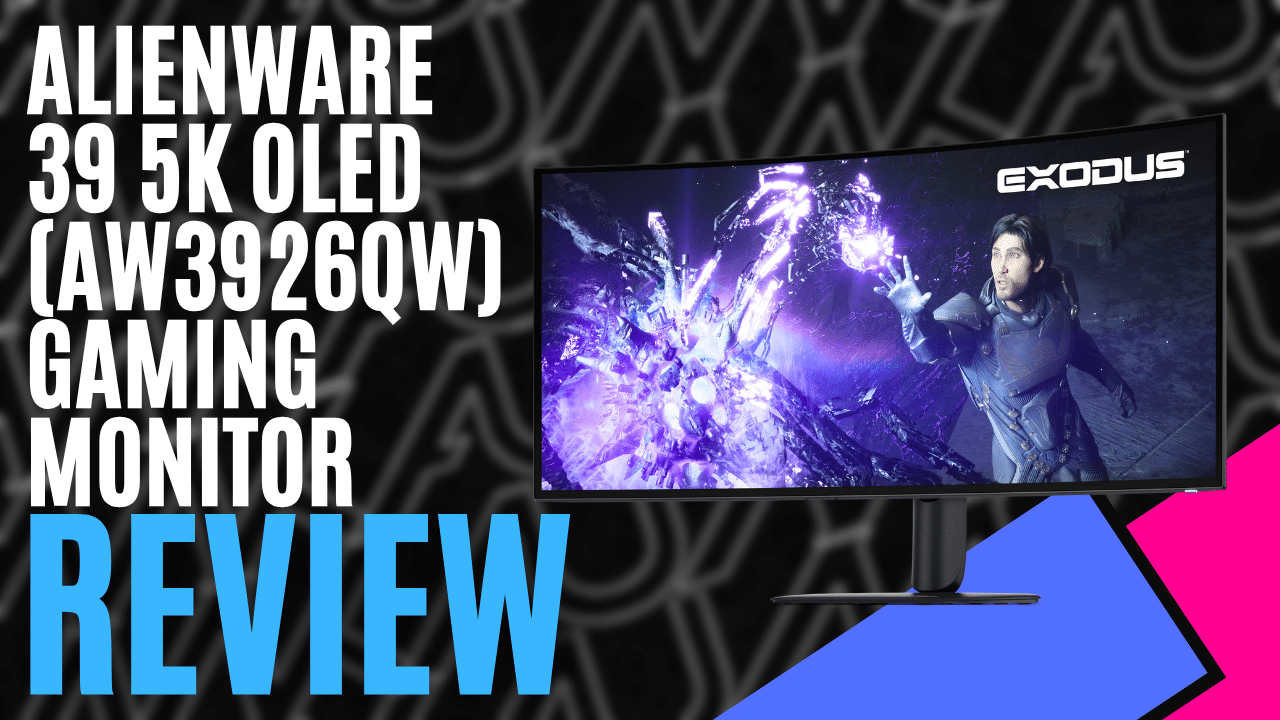
If you’ve spent any real time staring at curved gaming screens, you know the usual trade-off. Settle for a 34-inch ultrawide with 1440 vertical pixels, or buy a 49-inch super-ultrawide that eats your entire desk. The Alienware 39 5K OLED Gaming Monitor (AW3926QW) sits between the two. It’s built for people who want high-refresh gaming at night and proper desktop work during the day, without picking one.
It’s a 38.9-inch curved panel running a native 5120 x 2160 at 165Hz. Flat take up front: I struggled to fault it. It isn’t cheap, but the hardware backs up the price.
Quick Facts
| Feature | Specification |
|---|---|
| Manufacturer | Dell / Alienware |
| Model | AW3926QW |
| Size & Aspect | 38.9 inches (987 mm diagonal), 21:9 Ultrawide |
| Panel Type | Four-stack Tandem OLED (True RGB Stripe) |
| Native Resolution | 5120 x 2160 (WUHD / 5K2K), 143 PPI |
| Refresh Rate | 165Hz (up to 330Hz in Esports mode) |
| Response Time | 0.03 ms (Gray-to-Gray extreme) |
| Curvature | 1500R |
| Brightness | 300 cd/m² (Typical SDR), 1,300 cd/m² (HDR Peak at 3% APL) |
| HDR Certifications | VESA DisplayHDR True Black 500, Dolby Vision |
| Colour Coverage | 99% DCI-P3, Delta E < 2 factory calibration |
| Video Inputs | 1x DisplayPort 2.1 (UHBR20), 2x HDMI 2.1 FRL (one with eARC) |
| Data & Power | 1x USB-C upstream (DP Alt Mode, 90W PD), 1x USB-B upstream, 2x USB-A, 1x USB-C downstream, KVM |
| Australian RRP | $1,999.00 AUD |
| Warranty | 3-Year Advanced Exchange (includes OLED burn-in) |
Price and Availability (AU)
The Alienware AW3926QW retails in Australia for $1,999.00 AUD. Order it direct from Dell Australia or grab it from the major local computer retailers.
Two grand is serious coin for a monitor. What makes it easier to swallow is the warranty. You get three years of Advanced Exchange cover, and Dell puts OLED burn-in protection in writing. If you’re dropping that kind of money on an emissive panel you’ll use for work every day, that guarantee matters.
Design and Build
Alienware has toned it right down this time. The chassis wears the new Nova Black finish and feels rock-solid on the desk. The 1500R curve is gentle enough that spreadsheet gridlines stay straight, but on a screen this wide it still wraps the far edges around towards you.
The lighting is restrained for once. No neon diffusers plastered across the back, just the Alienware head logo with AlienFX control. It looks more like a studio display than a gamer toy, and I mean that as a compliment.
I want to say that I don’t envy the design team for these devices for Alienware. There are always going to be those that want as much programmable RGB as is possible to fit on a single device, and then there are those that want the minimalist approach with lighting for whatever reason. Catering to both sides I can only imagine would be a costly venture, and one that is likely not to prove profitable. Regardless, the minimalist approach was the right way to go in my unprofessional opinion.
The stand clicks on without tools and gives you 110mm of height travel, tilt, swivel, and five degrees of slant to level it on a wonky desk.
The power supply lives inside the chassis, so there’s no brick to hide. Just a standard kettle cord. Dell quotes the centre of the panel at under 50mm thick, but between the rear hump and the curve, it still wants around 130mm of desk front to back.
The Cable Trap: Check Your Bandwidth
Here’s the bit that’ll save you an afternoon of swearing. Don’t pull a random DisplayPort or HDMI cable out of the drawer and expect this thing to behave.
Running 5120 x 2160 at 165Hz with 10-bit colour works out to roughly 55 Gbps of raw pixel data. DisplayPort 2.1 UHBR20 can carry that uncompressed. HDMI 2.1 FRL tops out at 48 Gbps, and DisplayPort 1.4 graphics cards (like my 3090) top out lower again, so both lean on Display Stream Compression to get there. A dodgy cable on any of those paths gets you random flickering, dropped DSC sync, or a screen that blacks out under load.
Worth knowing: the DisplayPort cable in the box is rated DP 1.4. That’s fine for a DP 1.4 card running DSC. If you’ve got a DP 2.1 graphics card and want the full uncompressed signal, buy a certified UHBR20 cable. Same goes for any longer replacements. Don’t cut corners here.
Day-to-Day Use and Text Clarity
Gaming OLEDs have a bad reputation for office work, and they earned it. WOLED and early QD-OLED panels use non-standard subpixel layouts, either adding a white subpixel or arranging red, green, and blue in triangles. Windows ClearType expects plain vertical stripes. When it doesn’t find them, you get green and magenta fringing along the edges of text.
This panel fixes that. It’s a four-stack tandem OLED with a true RGB stripe layout, and text is razor-sharp.
I recently started wearing glasses for astigmatism. On most monitors, fuzzy fonts give me eye strain within a couple of hours if I’m working without them. At 143 pixels per inch, I rarely bothered putting them on for desktop work here. Terminal windows, config files, pages of documentation. All easy.
The 21:9 shape with 2160 vertical pixels gives you the height of a 32-inch 4K screen plus a lot of extra width. Three full documents side by side, nothing cramped. The built-in KVM lets you plug your keyboard and mouse into the monitor and flip between your gaming rig and a work laptop hooked up to the 90W USB-C port.
Gaming Performance and Motion
This is where it shows off. OLED pixels make their own light, so black pixels switch fully off. In dark sci-fi corridors and night scenes, highlights punch through without blooming or grey haloing.
The anti-reflective coating and polariser matter here too. Older OLEDs go purple and milky when room light hits them. This one keeps blacks deep with the desk lamp on. It’s still a glossy finish, though, so don’t park a bright window directly behind your chair.
Motion clarity is excellent. With a 0.03ms grey-to-grey response time, pixels change state effectively instantly. No smearing, no ghosting behind fast-moving objects.
Just remember what you’re asking your PC to do. Native 5K2K means pushing over 11 million pixels every frame, roughly a third more than 4K. My RTX 3090 ran games beautifully, but you’ll want DLSS or FSR to get anywhere near 165Hz in heavy titles.
For competitive shooters, Esports mode drops to 2560 x 1080 at 330Hz, or shrinks the active area to a 24.5-inch (1520 x 855) or 27-inch (1680 x 945) 16:9 window at 330Hz, parked top, center, or bottom.
Console Mode That Actually Behaves
Most ultrawides treat consoles as an afterthought. Plug a PS5 or Xbox Series X into a typical 21:9 monitor and the 16:9 picture gets stretched sideways until everyone looks like they’ve been sat on.
Alienware sorted this in firmware. Plug your console into the HDMI 2.1 port, and the monitor takes the 4K 120Hz signal, works some sort of scaling magic & manages to scale the output properly right across the entire display, rather than just dumping a 16:9 output in the center with a chunk of dead space on either side of the video. It also leaves HDR and Variable Refresh Rate (VRR) alone. Round things stay round.
Menus, Controls, and Ergonomics
Adjusting settings is quick and painless. A five-way joystick sits centred under the bottom edge at the back. The on-screen menu responds fast and makes sense, so changing brightness or swapping inputs doesn’t mean digging through three layers of menus. You can also map shortcuts to the joystick directions, which makes switching colour profiles or turning on picture-in-picture a two-second job.
Test Setup
- Operating System: Windows 11 Pro
- PC Graphics Card: NVIDIA GeForce RTX 3090 ([HDMI 2.1 / DisplayPort 1.4a] with DSC)
- Consoles: PlayStation 5 and Xbox Series X (connected via HDMI 2.1)
- Cables: Included Alienware DisplayPort and HDMI 2.1 FRL cables
Verdict
The Alienware AW3926QW fixes the biggest problem with desktop OLEDs. The odd subpixel layouts that made earlier models a pain for text work are gone, and you still get properly fast, high-refresh gaming the moment you clock off. Console support is spot on, contrast is absurdly good, and the restrained design suits a grown-up desk.
If your wallet can handle the entry fee and your graphics card can keep up, this is the best ultrawide I’ve used.

1 Comment
Pingback: Best Buy Confirms Midnight Launch Event Openings for Ocarina of Time, With Limited Edition The Legend Zelda Switch 2 Consoles Also Up for Grabs - Comic Vibe