




Frame generation (oftentimes abbreviated as “FG”) has quickly solidified itself as one of the most vital and hotly debated innovations in modern PC gaming. When implemented correctly and used properly, it can greatly enhance the smoothness of modern, demanding PC games, particularly on high-refresh-rate monitors. Unfortunately, it’s also very easy to misuse under many circumstances, by game developers and gamers alike. As such, we decided to write this guide to illustrate the most optimal ways of using frame generation in modern PC games.
Let’s clear something up right away: Frame generation isn’t a panacea meant to fix low gaming performance universally. At its core, it’s a frame interpolation technology designed to insert interpolated frames between traditionally rendered ones. While this works wonders for perceived visual fluidity, it does absolutely nothing to accelerate game simulation/logic, input processing, or the baseline rendering rate. Simply put, 120 FPS with FG active is fundamentally different from a native 120 FPS.
That brings us back to the golden rule we’ll be hammering home throughout this guide: Frame generation is brilliant as a smoothness multiplier (in the right games), but it’s a terrible rescue tool for poor baseline performance.
The Most Important Rule: Always Look At The Baseline Frame Rate First
Before enabling FG in your game’s graphics settings menu, you need to ask yourself a very important question: how well does the game actually run before those artificial frames are inserted?
This baseline frame rate — which is often called the pre-interpolation frame rate — is a lot more important than whatever number your performance overlay displays. For example, if your game hits a 70 average FPS figure (ideally with good frame time consistency) natively and climbs to 120 FPS with frame generation, then you’re in for a fantastic experience. However, if you’re chugging along at 30–40 FPS and using FG to prop it up to 50–70 FPS, then while your game might look smoother, it’s certainly going to feel a lot less responsive and display very noticeable motion interpolation artifacts.
Even the GPU vendors broadly support this philosophy. AMD states that FSR Frame Generation works best from a minimum 60 FPS pre-interpolation baseline. At the same time, Intel lists 40 FPS as the minimum for XeSS Frame Generation but still recommends 60 FPS for the best latency, fluidity, and fidelity. NVIDIA, by contrast, does not publish a strict numerical minimum baseline frame rate for DLSS Frame Generation in its official documentation; its materials focus instead on hardware and software requirements, Reflex-assisted responsiveness, and the technology’s processing overhead. As such, our recommendation remains to target around 60 FPS or higher before enabling frame generation, regardless of vendor, so the technology enhances an already responsive experience rather than merely disguising poor underlying performance.
With all of that in mind, we’ve made the following table to summarize our FG recommendations for each game genre and corresponding recommended base frame rate figures:
| Game Genre | Recommended Baseline FPS Before Frame Generation | Recommendation |
| Competitive shooters/esports games | 144+ FPS | Avoid FG at all costs; lower graphics settings, use temporal upscaling and latency-reduction technologies instead |
| Fighting games/rhythm games | Locked native target (usually 60 FPS) | Avoid FG unless the game specifically handles it well |
| Racing games | 80+ FPS | FG can work well if steering still feels responsive |
| Fast-paced first-person shooter games | 80+ FPS | Decent use case, but avoid low baseline frame rates |
| Open-world RPGs / cinematic third-person action/adventure games | 50-60 FPS | Probably the best use case for standard 2X FG |
| Strategy/city builders/slow-paced sims | 50+ FPS | More forgiving, but camera movement and visual artifacting still need checking |
Of course, these numbers aren’t set in stone. How a game actually “feels” depends on a massive web of variables: game/input latency, animation style, camera velocity, your choice of inputs, display refresh rate, mouse sensitivity, and your personal tolerance for latency. Still, they serve as a good starting baseline.
Multi Frame Generation Needs An Even Stronger Baseline
Standard frame generation typically slides a single generated frame between two rendered ones. Multi-frame generation takes that concept even further. For example, NVIDIA’s DLSS 4.5 Dynamic Multi Frame Generation can (dynamically) generate up to 5 frames for every rendered one, whereas Intel’s XeSS 3 Multi Frame Generation can generate up to 3 frames for every rendered frame.
This capability unlocks eye-watering displayed frame rates, particularly on cutting-edge 240Hz, 320Hz, or higher refresh rate displays. But it also blows the gap between displayed FPS and real input latency wide open.
With classic 2X FG, the output is split evenly between rendered and generated frames. Once you move into heavier MFG modes, that balance shifts much further toward generated frames. The game in question may look exceptionally smooth, but input response is still tied to the much lower underlying render cadence rather than the final FPS figure.
MFG also carries a higher GPU frame time cost than conventional 2X FG. Generating several intermediate frames requires more processing work on the GPU, which can reduce the baseline rendering rate even further before those generated frames are added. As a result, enabling a higher MFG multiplier can leave you with fewer “real” frames than expected, even if the final output number rises dramatically.
For that reason, players should be considerably more conservative with multi-frame generation technologies. A 60 FPS baseline can work well with traditional 2X FG in slower-paced single-player games, but 3X, 4X, and higher modes benefit from a bigger starting point. In practice, that may mean lowering a few settings, selecting a more aggressive temporal upscaling mode, or reducing heavy ray tracing or path tracing effects until the game runs quite a bit better before MFG is enabled to further boost smoothness.
To put it bluntly: the more frames the GPU has to generate, the more important — and potentially scarcer — the real baseline frames become.
NVIDIA GPUs: DLSS Frame Generation, Multi Frame Generation, And Smooth Motion
If you’re running an NVIDIA GPU, there are two distinct flavors of frame generation you need to wrap your head around.
First up is game engine-integrated DLSS Frame Generation and Multi Frame Generation. This is always your best bet whenever it’s available. Because it’s baked directly into the game engine, it leverages native motion vectors and engine data to construct much higher-quality interpolated frames.
The second flavor is NVIDIA Smooth Motion, a newer driver-level AI model built to infer extra frames in titles lacking native DLSS Frame Generation support. According to NVIDIA, Smooth Motion works across compatible DirectX 11, DirectX 12, and Vulkan titlestive resolutions, DLSS Super Resolution, or other temporal upscaling methods
This makes Smooth Motion an excellent fallback for older or unsupported titles. With that said, a proper, developer-implemented in-game DLSS FG/MFG solution will easily beat out a driver-level alternative every single time.
If you are running DLSS Frame Generation or Multi Frame Generation on a Variable Refresh Rate (VRR) (AKA G-SYNC or G-SYNC Compatible in NVIDIA terminology) display, here is the ideal setup configuration to aim for:
| Setting | Recommendation |
| Hardware-Accelerated GPU Scheduling (HAGS) | ON (a Windows setting that’s mandatory for DLSS FG/MFG to work) |
| G-SYNC / G-SYNC Compatible | ON |
| V-Sync | ON in NVIDIA Control Panel / NVIDIA App |
| In-game V-Sync | OFF, though it can be toggled ON alongside DLSS FG/MFG in games using the latest version (2.12) of the NVIDIA Streamline framework |
| NVIDIA Reflex | ON, or ON + Boost if available and stable (mandatory for DLSS FG/MFG to work) |
| External frame rate limiter | Avoid at all costs, as it will not only negatively impact the DLSS FG/MFG frame pacing, but also considerably increase latency |
NVIDIA rolled out official DLSS 3 Frame Generation support for V-Sync on G-SYNC displays all the way back with the RTX 4080 Game Ready Driver, specifically aimed at delivering a tear-free, responsive experience when frame generation is active. NVIDIA Reflex is just as vital here. The company notes that Reflex cuts down system latency by tightly synchronizing rendering tasks across the CPU and GPU.
This is why Reflex should essentially be mandatory whenever you have DLSS Frame Generation or Multi Frame Generation running. Modern titles will often auto-enable Reflex the moment you turn on DLSS FG/MFG, and for good reason: interpolation naturally introduces a bit of latency, and Reflex is there to claw that responsiveness back by cleaning up the render queue.
There is one major caveat to keep in mind regarding DLSS 4.5 Dynamic Multi Frame Generation. NVIDIA points out that Dynamic mode can target your monitor’s maximum refresh rate or a custom frame rate cap directly through the NVIDIA App, but they also note that it currently conflicts with standard frame rate limiters and V-Sync. Because of this, don’t treat Dynamic MFG exactly like traditional, fixed 2X FG. If you’re utilizing Dynamic mode, stick to the recommended NVIDIA App behavior and test your results thoroughly.
As for NVIDIA Smooth Motion, treat it as a handy tool in your back pocket rather than a setting you turn on globally. It can work wonders in older classics or lighter titles where your baseline frame rate is already rock-solid. Just remember that because it operates at the driver level without engine data, you’ll want to check each game individually for any visual artifacts or unusually higher latency.
AMD GPUs: FSR Frame Generation And AFMF 2.1
For Team Red users, keeping the line clear between game-integrated and driver-level solutions is just as critical.
AMD FSR Frame Generation serves as the in-game FG option. AMD’s documentation highlights the latest version of FSR Frame Generation as an ML-powered interpolation tech that cooks up high-quality intermediate frames from consecutive remains available to support a wider array of GPUs, even from other vendors
If a title offers native FSR Frame Generation, make it your default choice over driver-level solutions. In-game implementations have direct access to internal engine data, whereas driver-level solutions have to guess more generically.
AMD also emphasizes that FSR Frame Generation is built to be paired with Anti-Lag 2. FSR FG is designed from the ground up to complement FSR Upscaling and Radeon Anti-Lag 2, with the latter focusing heavily on cutting down end-to-end latency in heavily GPU-bound scenarios.
When it comes to managing VRR and V-Sync alongside FSR Frame Generation, AMD’s advice is a bit more nuanced than NVIDIA’s. They recommend turning both VRR (AKA FreeSync in AMD terminology) and V-Sync ON if your frame times are stable, which should give you a clean, tear-free image. However, if your frame times are bouncing around, AMD notes that leaving VRR ON but turning V-Sync OFF might provide a smoother feel, even if it introduces minor screen tearing — particularly near or above the display’s maximum refresh rate.
So, for AMD FSR Frame Generation:
| Scenario | Recommended Setup |
| Stable frame times | VRR ON + V-Sync ON |
| Unstable frame times | VRR ON + V-Sync OFF may feel better, but tearing can appear |
| Hardware-Accelerated GPU Scheduling | Enable HAGS in Windows 11 |
| Baseline FPS below 60 | Lower settings/upscale more before enabling FG |
| Game supports Anti-Lag 2 | Enable it |
| Third-party overlays/hooks causing pacing issues | Test without them |
That final point about third-party software is well worth noting. AMD states that FSR Frame Generation needs unhindered access to the swap chain to ensure smooth frame pacing, meaning any background apps intercepting DirectX Graphics Infrastructure (DXGI) calls can trigger annoying micro-stutter. This doesn’t mean you need to disable every single performance overlay, but if your game feels weirdly choppy with FSR FG active, then disabling capture tools, overlays, and injectors should be your first troubleshooting step.

AMD recommends enabling Hardware-Accelerated GPU Scheduling (HAGS) in Windows 11 when using FSR Frame Generation. HAGS can help the game’s presentation and frame pacing path, while AMD notes that leaving it disabled may produce additional tearing, particularly with VRR enabled and V-Sync disabled. It is therefore worth enabling HAGS before using FSR FG, followed by a system restart, although the exact impact may still vary by GPU, game, and driver. Unlike DLSS FG/MFG, which require HAGS to function, FSR FG can operate without it, although enabling HAGS is still recommended.
AMD Fluid Motion Frames (AFMF) is an entirely different beast. AFMF is their driver-level alternative built right into the AMD Software: Adrenalin Edition. Its latest version is 2.1, and you can toggle itup manually on RX 6000 GPUs. To get the most out of it, AMD recommends a FreeSync display, requires Adrenalin driver version 25.3.1 or newer, and explicitly mandates that V-Sync be turned off both in the driver and in-game
Because AFMF 2.1 supports DirectX 11, 12, Vulkan, and OpenGL, it boasts a much wider reach than FSR FG.
The best way to approach AFMF 2.1 is as a safety net: use it when a game completely lacks a native frame generation option, and make sure you’re pairing it with a VRR/FreeSync monitor, a robust baseline frame rate, and disabled V-Sync. Do not try to use AFMF 2.1 to transform a sluggish 30 FPS slideshow into a “high-refresh” experience, as that is simply not what driver-level tech is designed to handle.
Intel GPUs: XeSS Frame Generation and Multi-Frame Generation
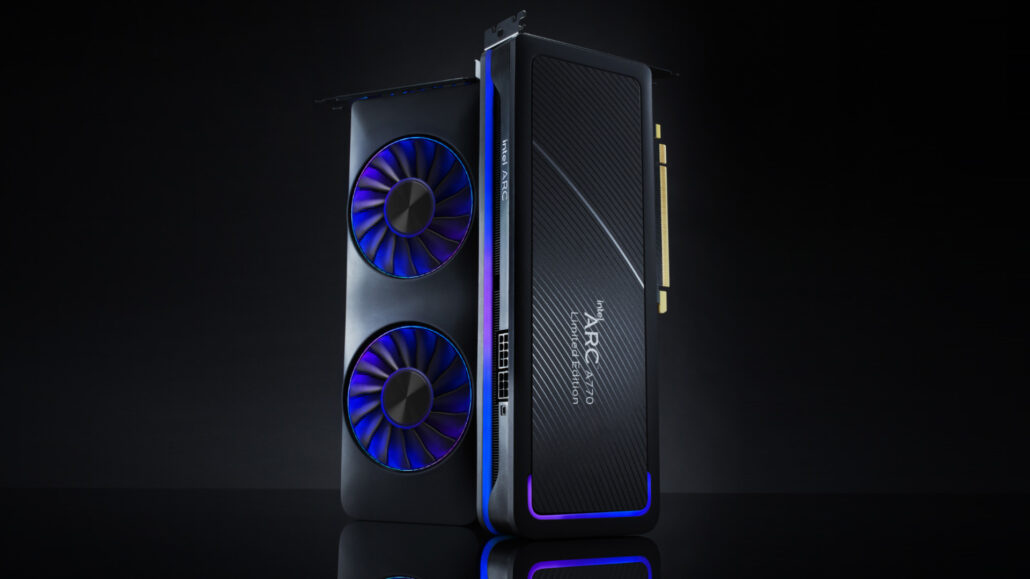
Intel’s latest contribution to the frame generation space is XeSS 3, a suite comprising XeSS Super Resolution, XeSS Multi Frame Generation, and Xe Low Latency. Standard XeSS Frame Generation inserts one interpolated frame between two rendered frames, while XeSS 3 expands this with 3X and 4X Multi Frame Generation modes. At its highest setting, XeSS MFG can insert up to three generated frames between every pair of rendered frames, producing four displayed frames for each frame actually rendered by the game.
Intel’s general frame generation guidance lists 40 FPS as the minimum input frame rate, while recommending 60 FPS for the best combination of latency and visual fidelity. We would treat 40 FPS as an absolute floor for regular 2X FG rather than a desirable target, however, and recommend starting comfortably above 60 FPS before engaging the heavier 3X or 4X MFG modes. As with NVIDIA’s MFG implementation, the final displayed frame rate can look exceptionally fluid, but both input response and visual fidelity — which is tied to the lack or presence of frame interpolation artifacts — remain tied much more closely to the lower baseline rendering cadence.
Xe Low Latency, or XeLL, is not merely an optional companion feature here. Intel requires a functioning XeLL integration for XeSS FG/MFG, using it not only to manage frame pacing but also to reduce the additional latency associated with generated frames. If XeLL is not initialized and enabled, then XeSS FG will simply not function.
Hardware compatibility requires a little clarification. Regular 2X XeSS FG is available on supported discrete and integrated Intel Arc graphics, as well as competing GPUs with Shader Model 6.4 support. On non-Intel hardware, XeLL works only as part of XeSS FG and cannot be enabled independently. XeSS Multi Frame Generation, however, remains exclusive to Intel hardware, so AMD and NVIDIA users are currently limited to the standard 2X implementation.
In practice, our recommended XeSS FG/MFG setup looks like this:
| Setting | Recommendation |
| XeSS Frame Generation — 2X | Target at least 60 FPS before enabling it; treat 40 FPS as the bare minimum |
| XeSS Multi Frame Generation — 3X/4X | Intel GPUs only; start comfortably above 60 FPS when possible |
| Xe Low Latency | Required for XeSS FG and MFG; keep it enabled |
| VRR / V-Sync | Fully supported; test the available combination for the cleanest frame pacing and visual smoothness |
| Motion Blur | Reduce or disable it when using FG or MFG |
Intel officially supports XeSS Frame Generation across fixed-refresh, V-Sync, and VRR display configurations, leaving some room for per-game tuning. The company also recommends reducing, disabling, or specifically adapting motion blur when FG is active. That may sound like a minor detail, but it is excellent advice regardless of GPU vendor: aggressive motion blur tuned around a lower rendered frame rate can look excessive or downright strange once several interpolated frames are inserted between the real ones.
Frame Generation Works Best With VRR, But VRR Does Not Fix Everything
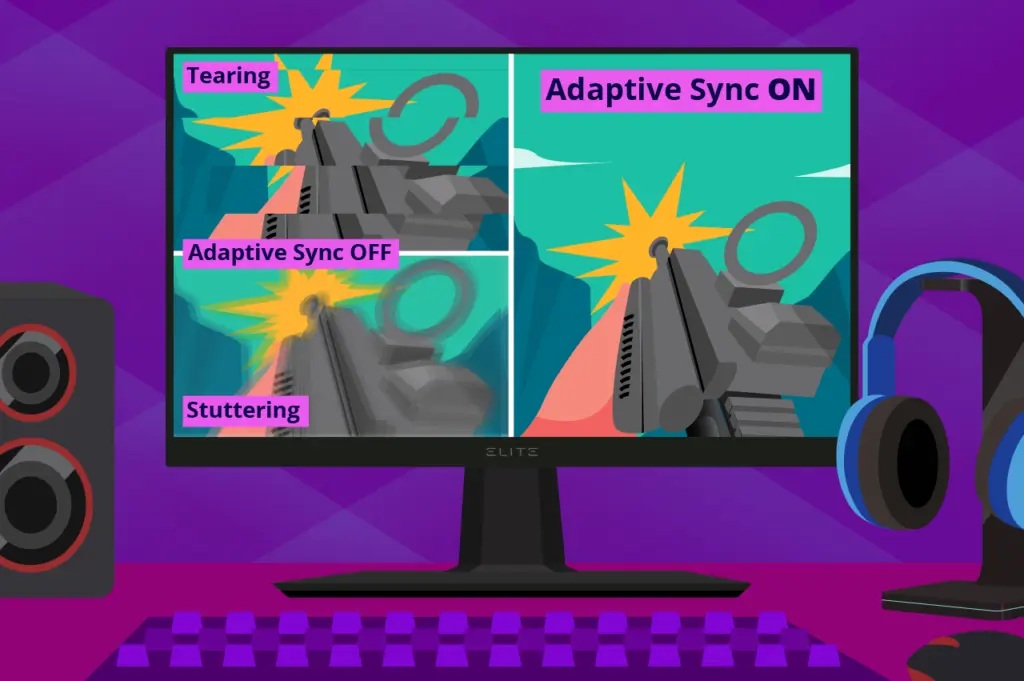
A high-quality VRR monitor is easily the best companion you can pair with frame generation. Displays equipped with NVIDIA G-SYNC, AMD FreeSync, or VESA Adaptive Sync dynamically match their refresh cycles to your game’s real-time output, hiding minor frame delivery slip-ups and maximizing perceived smoothness. Still, VRR isn’t a silver bullet.
If your baseline frame rate is a fluctuating mess, then your FG output is still going to feel uneven, though it might feel a bit smoother to your eyes. If a title suffers from deep engine issues — like traversal hitches, shader compilation stutters, or severe CPU bottlenecks — then generated frames might make the camera pan smoothly between the stutters, but they won’t remedy the root issue. In fact, it can sometimes make those hitches feel worse because the contrast between fluid AI motion and a sudden hardware stall becomes jarringly obvious.
This is why adhering to a proper optimization hierarchy is absolutely non-negotiable:
- First, fix major stutters and stability issues, if at all possible;
- Then, lower graphics settings and/or make use of modern temporal upscaling techs to reach a good baseline frame rate;
- Then enable frame generation with its associated latency-reduction tech;
- Finally, tune VRR/V-Sync/frame rate caps for the cleanest presentation to your monitor.
Attacking this list in reverse order is the number one reason players end up with an impressive FPS counter but a completely unplayable gaming experience.
Frame Generation Can Increase VRAM Usage
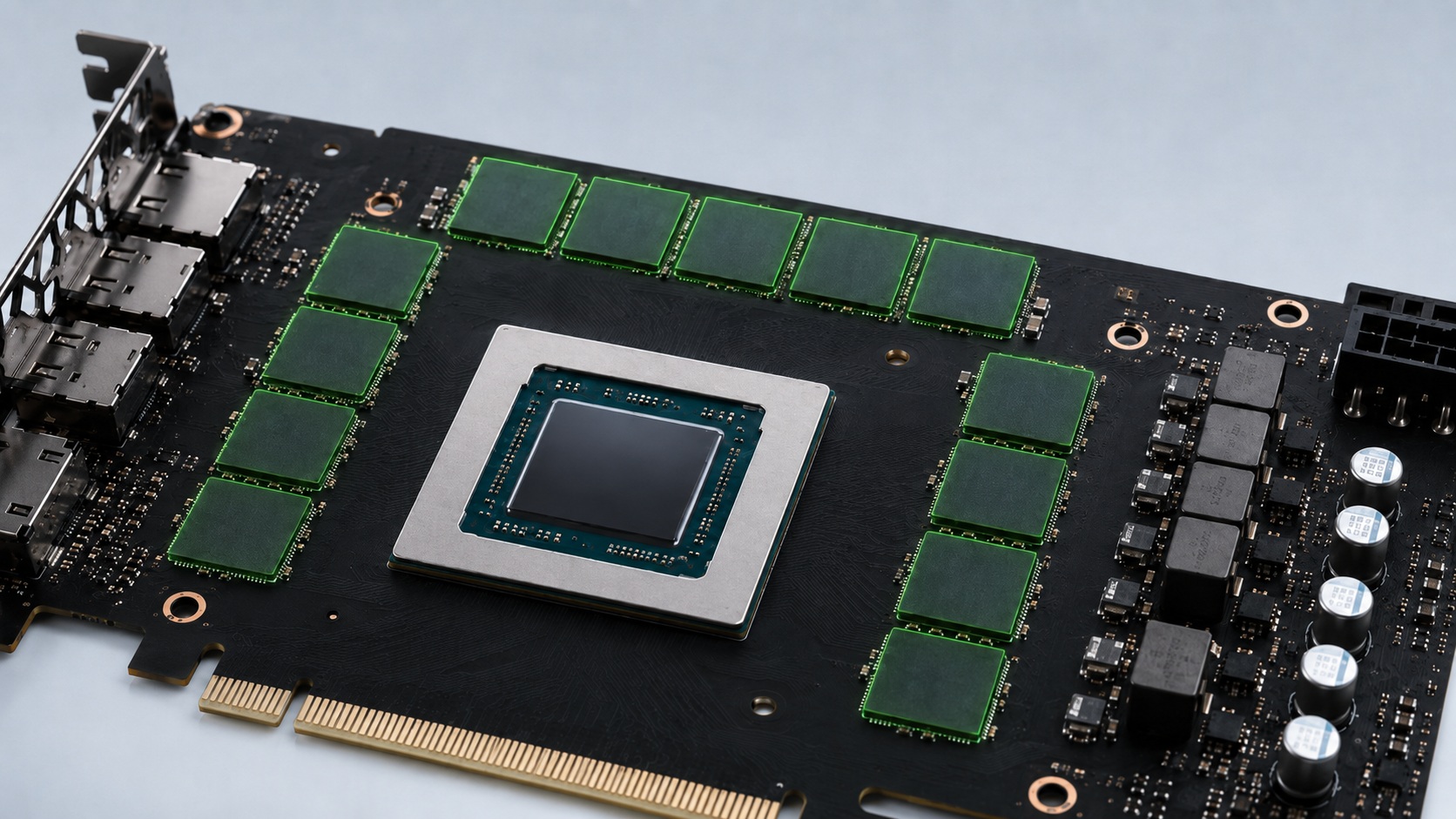
Frame generation is not free from a GPU processing perspective, and that holds for both the algorithm processing time and VRAM usage. DLSS FG/MFG, FSR FG, and XeSS FG/MFG all require additional GPU-local resources to store data such as source frames, motion information, optical-flow inputs, neural network weights, temporary activations, and presentation buffers. The exact overhead varies by resolution and implementation: AMD, for example, lists roughly 124 MB for FSR 3.1 FG at 1080p, 214 MB at 1440p, and 457 MB at 4K — and those figures exclude the additional swap chain overhead. NVIDIA similarly provides developers with a way to estimate DLSS FG/MFG’s VRAM requirement, while Intel confirms that XeSS FG/MFG allocates both persistent and temporary GPU resources.
This is particularly relevant on GPUs with 8 GB of VRAM or less. If a game is already close to exhausting its memory budget, then enabling frame generation can push it over the edge, forcing the eviction of crucial GPU VRAM resources into much slower system memory, thus greatly reducing performance, causing severe stutters, hitches, or even preventing the feature from initializing correctly. In VRAM-heavy games, lowering texture quality, ray/path tracing settings, or output resolution may therefore be necessary before enabling FG, as otherwise, the technology intended to improve smoothness can end up doing precisely the opposite.
When You Should Not Use Frame Generation
While frame generation can be a great asset when used correctly, there are plenty of scenarios where it’s best to leave it disabled.
First and foremost: competitive gaming. Even when a competitive game supports frame generation, you should strongly resist the temptation to enable it. In this context, the drawbacks usually outweigh the smoother presentation, even on a high-refresh-rate monitor. The main issue is input latency: FG may make motion look more fluid, but it cannot deliver the responsiveness of a true high native frame rate and can instead make aiming and reactions feel less immediate. For competitive play, prioritize raw rendered FPS, enable Reflex Low Latency, Anti-Lag 2, or Xe Low Latency alongside V-Sync for a smooth, responsive, and tear-free experience.
Second,don’t use it to mask severe stuttering. FG is completely powerless against shader compilation stutters, asset streaming hitches, severe CPU bottlenecks, or fundamentally broken frame pacing. Those issues have to first be ironed out at the
Third, it’s generally a waste on standard 60Hz/non-gaming displays. While there are a few niche edge cases where it can provide minor value, the trade-off is much harder to justify than it is on a 120Hz, 144Hz, or 240Hz gaming panel. If your monitor physically lacks the headroom to display that extra visual data cleanly, then you’re taking on latency penalties for almost no real-world gain.
Finally, pay close attention to UI and HUD quality. Frame generation artifacts love to rear their ugly heads around static screen elements, like crosshairs, subtitle text, mini-maps, nameplates, and high-contrast edges. It’s telling that NVIDIA’s recent DLSS 4.5 Dynamic Multi Frame Generation release explicitly focuses on cleaning up UI/HUD artifacts for RTX 40 and 50 Series users with its new “Preset B”. As such, it’s a well-known engineering hurdle that you should keep an eye on.
Final Words
Ultimately, frame generation stands as one of the most remarkable technical achievements in modern PC gaming, though it’s also the most easily misunderstood. When used correctly, it breathes new life into demanding games, lets high-refresh rate monitors truly flex their muscles, and makes heavy ray/path traced games surprisinglyl performance, and it should never be used to sweep a fundamentally broken game under the rug
The core philosophy is quite simple: make the game feel good first, then use generated frames to make it feel even better.
That means dialing in a rock-solid baseline frame rate, pairing it with the correct low-latency technologies, configuring your VRR and V-Sync settings properly, avoiding clashing frame limiters, and treating driver-level features like AFMF 2.1 or Smooth Motion as handy fallbacks rather than a replacement for native, in-game engine developer integration.
If your game is already running beautifully, then FG will take it to the next level. Otherwise, it’d be basically like putting lipstick on a pig.
About the author: Sebastian Castellanos is a data scientist by education and training. He’s also deeply passionate about PC gaming hardware and software. He has recently started writing technical articles and guides on Wccftech about PC hardware, games and mods.
Follow Wccftech on Google to get more of our news coverage in your feeds.
