

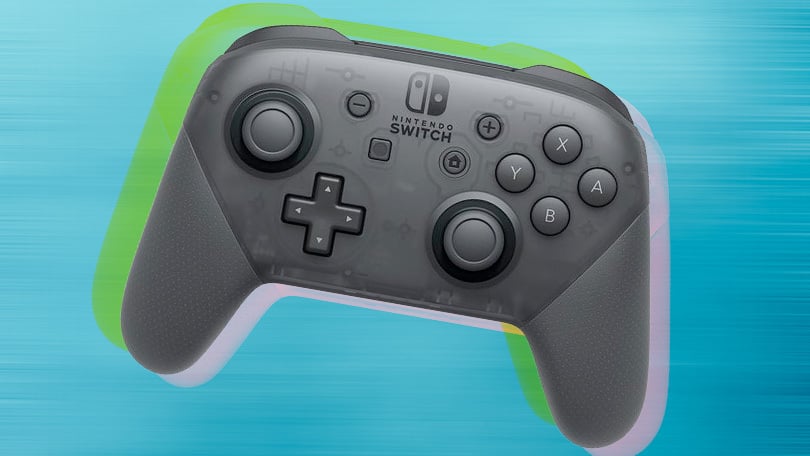
The Nintendo Switch Pro Controller is a great “baseline” controller. It’s sturdy, feels good in hand, has an excellent directional pad, and features impressive motion sensors and vibration tech. On top of that, the gamepad uses Bluetooth, so you don’t need an adapter to connect it to your PC. The Switch 2 Pro Controller is even more impressive, featuring programmable rear buttons and a headphone jack. Getting it to work with Steam games as a wired controller is easy, but getting a wireless connection requires a bit more work, so if you want a good gamepad for your PC, the original Switch Pro Controller is still one of your best bets.
Regardless of the Pro Controller you fancy, here’s how to connect it to your gaming rig.
How to Connect Your Switch Pro Controller to PC With a Wired Connection
-
Plug your Pro Controller cable (or any USB-A-to-USB-C data cable, or USB-C-to-USB-C data cable if your PC has a USB-C port) into the controller.
-
Plug the other end of the cable into your PC.
That’s it! Windows will detect the controller as a “Pro Controller.” Then, you can proceed to the Steam setup steps below.
How to Connect Your Switch Pro Controller to PC With a Wireless Connection
You need a Bluetooth adapter or a PC with onboard Bluetooth. Regardless, the connection is easy to set up.
-
With the Pro Controller charged, press and hold the Sync button on the top of the gamepad for a few seconds until the indicator lights start flashing.
-
Open the system tray and right-click the Bluetooth icon.
-
Click “Add Bluetooth or Other Device.”
-
The Pro Controller should appear on the list of available devices (if it doesn’t, make sure the indicator lights are still flashing back and forth). Click it, and pair the controller.
-
Now, you can move on to setting up Steam.
How to Set Up Steam for Switch Pro Controller Use
The Pro Controller appears to Windows as a DirectInput controller rather than an XInput controller like the Xbox Series X/S gamepad (or the fancier Xbox Elite Core Controller), so it can be a bit of a chore to get it working with your PC games. Fortunately, Valve added full Switch Pro Controller support to Steam, which probably covers a good chunk of your game library. Non-Steam games require additional steps that I’ll walk you through.
To ensure everything works as intended between the Pro Controller and your PC game, use Steam’s Big Picture mode, a couch-friendly lean-back menu system that works well with a gamepad. Using Big Picture ensures that Steam’s controller support, remapping, and configuration options appear as they should, which won’t likely be the case if you open a game from the desktop.
-
If Steam doesn’t automatically launch in Big Picture mode when you connect the Pro Controller, open Steam and go to the Settings menu.
-
Click General Controller Settings to open a full-screen Big Picture window.
-
Click “Switch Pro Configuration Support.”
If the Pro Controller is connected, the mouse cursor should disappear, and you should be able to navigate Big Picture with the gamepad. You can toggle “Use Nintendo Button Layout” depending on whether you prefer the A/B/X/Y buttons to be mapped as they are on the Pro Controller (clockwise X, A, B, Y from the top), or as they’re mapped on an Xbox controller (clockwise Y, B, A, X from the top).
When set up through Steam, the Pro Controller should work like an Xbox gamepad with any Steam game. You can toggle vibration on and off by clicking the controller under “Detected Controllers” in the same setup screen. If the analog sticks appear to be off, manually calibrate them by clicking Calibrate. You can also set how long the controller stays connected before disconnecting.
With your game running through Big Picture mode, you should enter the Pro Controller’s controller options to bring up Steam’s Switch Pro Controller overlay. It allows you to check the controller mappings for various situations and adjust them as needed. You can manually map each input on the Pro Controller to any keystroke or gamepad input, but the default configuration should work for most games. This is helpful if any controls seem slightly off with the default settings.
Hardware Alternative: 8BitDo Wireless USB Adapter 2
Steam’s Pro Controller support is welcome, but you’re out of luck if you want to play non-Steam games with the controller because of how Windows detects it. You can fix this by using a hardware Bluetooth adapter that supports multiple gamepad types.
The 8BitDo Wireless USB Adapter 2 is a $19.99 Bluetooth adapter that lets you easily connect the Switch Pro Controller, Switch Joy-Cons, or even the Wii U Pro Controller to your PC. The adapter handles all the XInput details, so connecting the Switch Pro Controller to ittooth menu, makes it work like a PC-friendly Xbox gamepad
Software Alternative: DirectInput-to-XInput Wrapper
This is another way to play non-Steam games, and it’s the most powerful and complicated option. Instead of relying on Steam or a USB adapter, you use a software wrapper to translate the Pro Controller’s inputs into a format that Windows can better support.
X360ce is an open–XInput controller. It’s a robust wrapper that emulates an Xbox 360 gamepad by mapping nearly any other input to its buttons and sticks. The project is effectively complete and/or abandoned at this point; x360ce was last updated in 2020, but the program continues to work well even without ongoing development
BetterJoy is another program for getting the Switch Pro Controller and Joy-Cons working as XInput devices. Its most recent release is from 2021.
Recommended by Our Editors
How to Connect Your PS5 DualSense Controller to Your PC
The Best Video Game Controllers for Every Platform
The Best PC Games for 2026
There’s also a newer project called Switch2Connect that’s specifically intended for the Switch 2 Pro Controller and Switch 2 Joy-Cons. It was last updated three days ago, at the time of this writing, which means it is being updated. However, it’s only four months old, so there might be more kinks to work out than the other two projects.
These applications should get the job done if you’re willing to tinker with them. In fact, it may take more than a bit of work; the third-party driver wrappers and outright alternative drivers they rely on, like WinUHid or ViGEmBus, are extremely finicky.
How to Connect the Switch 2 Pro Controller to Your PC
If you don’t mind a cable, you can use the Switch 2 Pro Controller with your PC without much effort. Steam’s Switch Pro Controller support has been updated to include the Switch 2 Pro Controller, and I confirmed it works just as well when connected over USB.
Wireless is another story, since the newer gamepad primarily uses Bluetooth Low Energy (BLE) rather than the standard Bluetooth used by other gamepads. As a result, you can’t pair it the same way through Windows’ Bluetooth menu. Switch2Connect helps address that issue by providing a separate HID driver that converts the controller’s inputs into standard formats. My cursory tests with it let me play Palworld and UFO 50 wirelessly with the Switch 2 Pro Controller.
What About Switch Joy-Con Controllers?
Joy-Cons are incredibly powerful and flexible on the Switch, but they can be awkward to use on a PC. The good news is that you can connect Joy-Cons to your PC by pairing them over Bluetooth like the Switch Pro Controller. The bad news is that each Joy-Con registers as its own controller, and getting two Joy-Cons to work together as a single gamepad is challenging. Betterjoy and Switch2Connect help streamline that process.

Xbox Mode for Windows 11: Why You Need This Update
How to Connect Other Game Controllers
For more information, see our guide on selecting the right controller for your PC. If you have a PS4, PS5, or Xbox controller that you want to connect to your PC, we have instructions for those gamepads as well.
About Our Expert
Will Greenwald
Principal Writer, Consumer Electronics
Experience
I’m PCMag’s home theater and AR/VR expert, and your go-to source of information and recommendations for game consoles and accessories, smart displays, smart glasses, smart speakers, soundbars, TVs, and VR headsets. I’m an ISF-certified TV calibrator and THX-certified home theater technician, I’ve served as a CES Innovation Awards judge, and while Bandai hasn’t officially certified me, I’m also proficient at building Gundam plastic models up to MG-class. I also enjoy genre fiction writing, and my urban fantasy novel, Alex Norton, Paranormal Technical Support, is currently available on Amazon.
Areas of Expertise
Latest By Will Greenwald
- Google Pixel Watch 5 vs. Galaxy Watch 9: Is Samsung’s Dominance Finally Over?
- Apple TV vs. Fire TV vs. Google TV vs. Roku: Every Major Smart TV Platform Compared
- The Best Smart Glasses for 2026
- Dolby Vision 2 Is Coming. Here’s What to Know About This New HDR Format
- Viture Pro 2 Review: These $299 Smart Glasses Treat Vision Correction as a Feature, Not an Extra
- More from Will Greenwald
