

Instead of paying a fortune for a big OLED 4K gaming monitor, it’s no wonder some gamers think, “Can I use an OLED TV as a computer monitor?” Well, yes, they can. A high-end OLED TV, such as the LG C4 42-inch, can plug directly into a modern graphics card and work just fine as a massive, vibrant display. Because OLED panels use self-lit pixels rather than a backlight, they deliver fantastic contrast, near-instant response times, and true blacks. But does using a TV as a computer monitor have downsides?
Well, if there weren’t, OLED 4K gaming monitors wouldn’t exist. OLED TVs are designed to be viewed across a living room while chilling on the couch. Sitting at a desk with a 42-inch TV forces users to turn their heads to see different elements on-screen. Gamers who have tried this often suffer neck cramps and eye strain from constantly trying to take in such a wide, tall surface area, myself included. For competitive players, eSports teams rarely use resolutions over 1440p and have a screen size between 24 and 27 inches, which is small enough to keep the HUD within the central field of vision. So using an OLED TV for serious players isn’t very effective.
With the advent of Steam Machines and Mini ITX gaming PC builds, PC gamers have started taking couch PC gaming seriously. Plus, OLED TVs look better and are more comfortable to use from a distance, even if they’re limited to HDMI ports and can’t hit frame rates past 60Hz or 120Hz, depending on the TV model.
Connectivity and sleep-wake issues
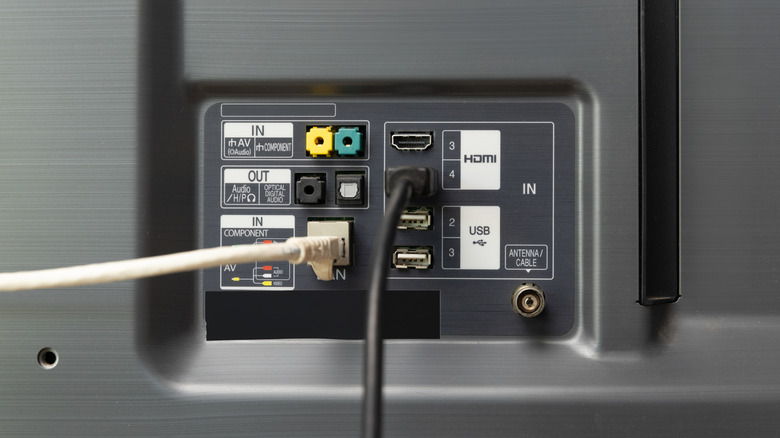
So what‘s the real downside of using an OLED TV? Even if users have a big enough desk to make a 42-inch OLED TV comfortable to use, hardware limitations still matter when comparing it to OLED gaming monitors. The biggest downside for PC gamers is the lack of DisplayPort. Modern desktop graphics cards have HDMI ports, but they focus on DisplayPort architecture that provides the highest bandwidth for extreme refresh rates. Even newer OLED TVs can suffer from burn-in, and although most manufacturers include anti-burn-in technology, static taskbar icons can still pose a risk.
Because TVs are built with consoles and cable boxes in mind, they rely exclusively on HDMI inputs. That’s not to say HDMI 2.1 isn’t capable, but relying solely on HDMI can sometimes bottleneck a PC’s maximum refresh rate or prevent proper syncing with Variable Refresh Rate (VRR) technologies like G-Sync and FreeSync. That’s one reason to opt for an OLED monitor instead.
TVs don’t behave the same way as monitors, especially when it comes to power states. A dedicated PC monitor is designed to seamlessly wake up and go to sleep when it detects a signal from the PC. A TV, by contrast, needs a remote control to turn it on and off and may drop into annoying power-saving modes while you’re reading an article, for example.
Pixel density and text clarity
The way OLED TVs render Windows isn’t ideal for the human eye at close range either. Turning back to distance-viewing optimization, an OLED TV’s pixel density (PPI) is lower than an OLED gaming monitor’s. For example, a 27-inch 4K monitor will look incredibly sharp, but stretching that same image across a 42-inch screen makes it look worse up close. This can also make text appear blurry, jagged, and difficult to read.
This issue comes down to the subpixel arrangement not perfectly aligning with how Windows renders text documents or read emails all day, this poor text clarity can make a TV a poor choice
This can also happen on some Ultrawide OLED monitors too. My LG UltraGear 45GS95QE OLED looks great while gaming, but it needs a third-party program like MacType, which overrides Windows font rendering, to fix jagged text and faint colors around it. This isn’t about making Windows look like macOS; it’s about using fonts and text settings that match the display to keep them legible. While I haven’t tried this solution on an OLED TV, it may improve text clarity on one.
