

Don’t let bad audio take you out of an awesome adventure or ruin your competitive performance.
Sound plays a big part in your gaming experience; it’s almost as important for setting a cinematic scene as the graphics are. If the sound is muffled, crackling, or completely missing, you’re missing out and are at a competitive disadvantage. Turning up the volume might help, but it won’t fix distorted audio coming from your PlayStation 5.
There’s no one method that’ll fix this type of problem. You’ll have to troubleshoot, investigating everything from a loose connection to the wrong output settings. Before you consider replacing your TV, sound system, or console, run through some checks.
Restart your devices and narrow down the problem
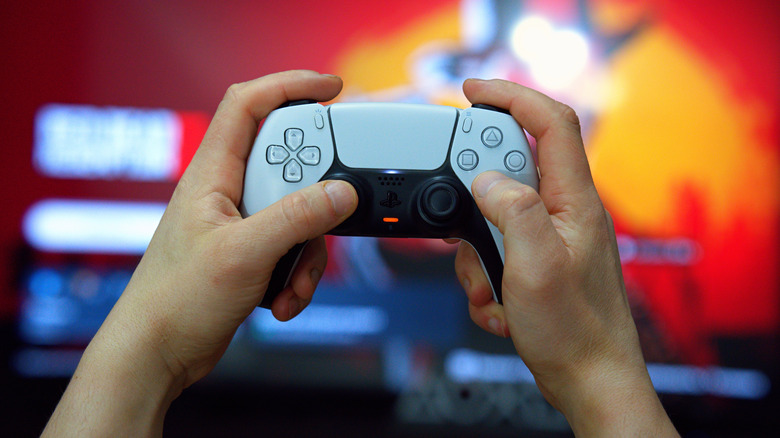
First, restart everything. Turn off your TV, speaker system, and console entirely (not just sleep mode), then turn them back on. Doing this should clear any temporary glitches that are affecting the audio and give you a fresh starting point to work from.
If the issue continues, try to narrow down ther the issue only affects your speakers or TV. Likewise, try another game or app to see if the audio problem affects multiple
If the problem doesn’t occur when you’re using your smart TV’s native apps, the TV’s speakers are less likely to be the problem. If you’ve got a spare HDMI device, such as a laptop or a streaming device like a Roku or Apple TV, try those out using the same cable and HDMI port as your PS5. This helps you determine whether the problem is specific to your PS5, while also giving you the opportunity to unseat your cables and plug them back in to see if there’s a loose connection.
Check your cables and simplify your connections
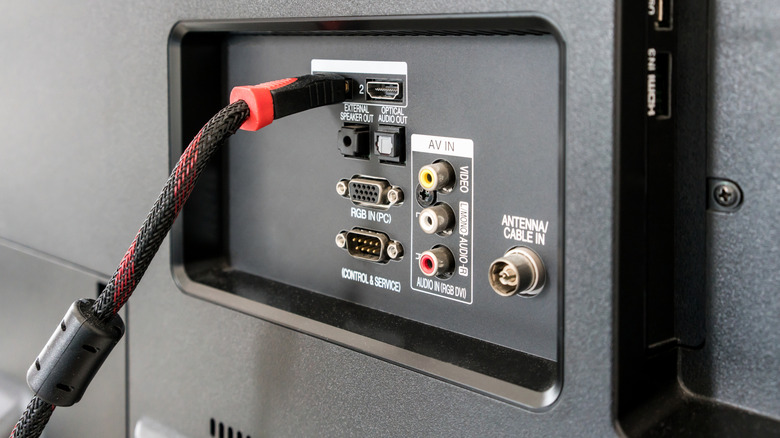
With the same logic, switch out everything else you can along the connection chain. Try another HDMI port and swap to another HDMI cable. Do the same for any other connections involved, especially if you have an external speaker system set up. I’ve experienced a bad HDMI cable causing issues in the past, where replacing the cable immediately fixed it.
Complex setups with more places for failure, like those involving a receiver, HDMI switch, or capture card, can also cause problems. To rule out other devices, temporarily hook up your PS5 directly to your TV and check the audio with your television speakers. This simplified audio setup may help you narrow down an issue to one of the extra devices or cables you’re using; you’ll need to work through them one-by-one to figure out which.
Check your PS5’s 3D audio feature, where you can compare standard stereo sound to 3D audio. If you prefer 3D audio, follow the on-screen instructions to measure your room’s acoustics using your controller’s microphone, sitting where you’d normally play. You’ll need to repeat this after you move your console to a new room or change the position you play from
Match the audio format to your sound system
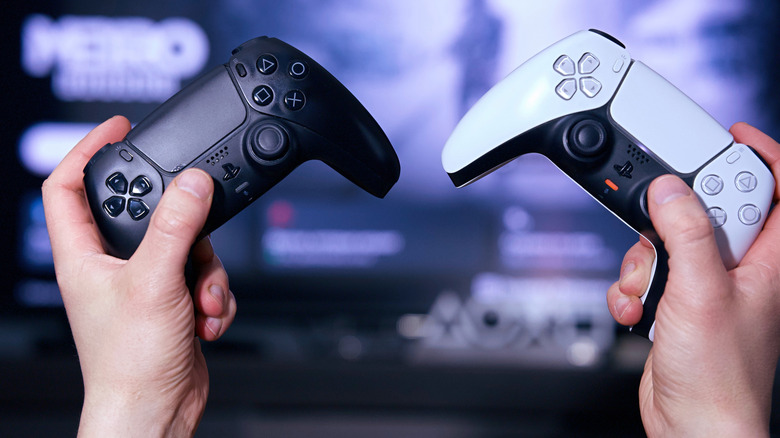
Next, work through your PS5’s audio settings to make sure they match the equipment receiving the sound. Open Settings > Sound > Audio Output, check Output Device, then set the HDMI Device Type to match your setup. For instance, select the AV Amplifier option if you’re using one, then set the Number of Channels option to match your speaker config, like 5.1 or 7.1 surround.
Look for Audio Format (Priority) and, to begin with, select Linear PCM. This is usually the best setting if you’re using your TV’s internal speakers. The PS5 lets you use uncompressed Linear PCM output up to 7.1 channels if you’ve got the equipment. This means that the console can send audio without lossy compression, preserving the most audio detail.
If your TV passes the PS5’s audio to a soundbar or AV system, you have more to consider. Standard HDMI ARC carries stereo PCM, while eARC supports multichannel PCM with the right equipment. You’ll need to make sure you’re using the right HDMI port to connect your TV to your sound system. In case you can’t tell from the ports themselves, check your TV’s manual to identify the eARC port(s). Make sure to use one for your sound system if present, and confirm it’s enabled on your TV. Otherwise, use standard HDMI ARC, knowing you’ll be limited to stereo with Linear PCM over ARC. Surround sound will require a supported compressed format, such as Dolby Audio.
It’s also worth double-checking the settings on your TV or sound system, especially if you have any virtual surround effects switched on. Your TV might have its own audio format settings for each HDMI connection, which can sound poor when paired with the wrong audio format on your PS5.
It’s important to only make one change at a time when you’re adjusting these options. Each time you tweak a setting, save it, then repeat the steps that created the distorted audio before. When the problem disappears, or at least improves, you’ll know exactly what setting caused the issue.
Check your headphone settings and connection
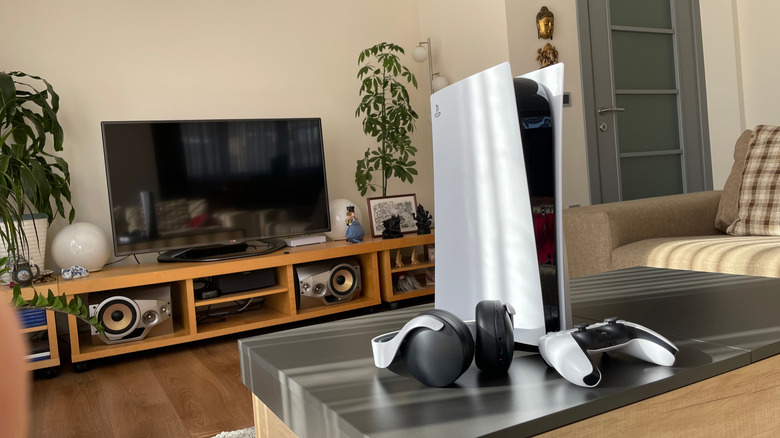
If you get distorted audio while using wired headphones with your PS5, start again with the basics, then look at the audio cable. Unplug it, then plug it back in again, making sure the connector goes back in fully. If you can, try another pair of headphones and a different controller to see if the hardware is at fault.
Then, check your volume configuration in your PS5’s settings. Open Settings > Sound > Volume and adjust the headphone volume, while also checking physical volume controls on the headset if present. 3D Audio might cause muffled sound, so go to Settings > Sound > 3D Audio(Headphones) and try both on and off to compare them. If the problem is limited to a specific title, check the in-game sound settings.
Wireless headphones add interference into the mix of potential problems that can cause low-quality audio. You’ll need an adapter to use Bluetooth headphones with a PS5, while non-Bluetooth wireless headsets have their own receiver that plugs into the system. If you’re using either of these, unplug and reconnect the adapter and switch the headset off and on. Sony also recommends moving other wireless devices away from the adapter and using an extension cable to give it more room, if needed.
Work through these checks one at a time. If the settings don’t make a difference, you’ll need to determine whether you’ve got a hardware fault with your speakers, TV, or the PlayStation 5 itself. The more you can isolate, the better your chance of identifying the problem.

1 Comment
Pingback: Save Up to 66% on Nintendo Switch, PS5, and Xbox Games (Including Some of My Favorites) for Prime Day - Comic Vibe