

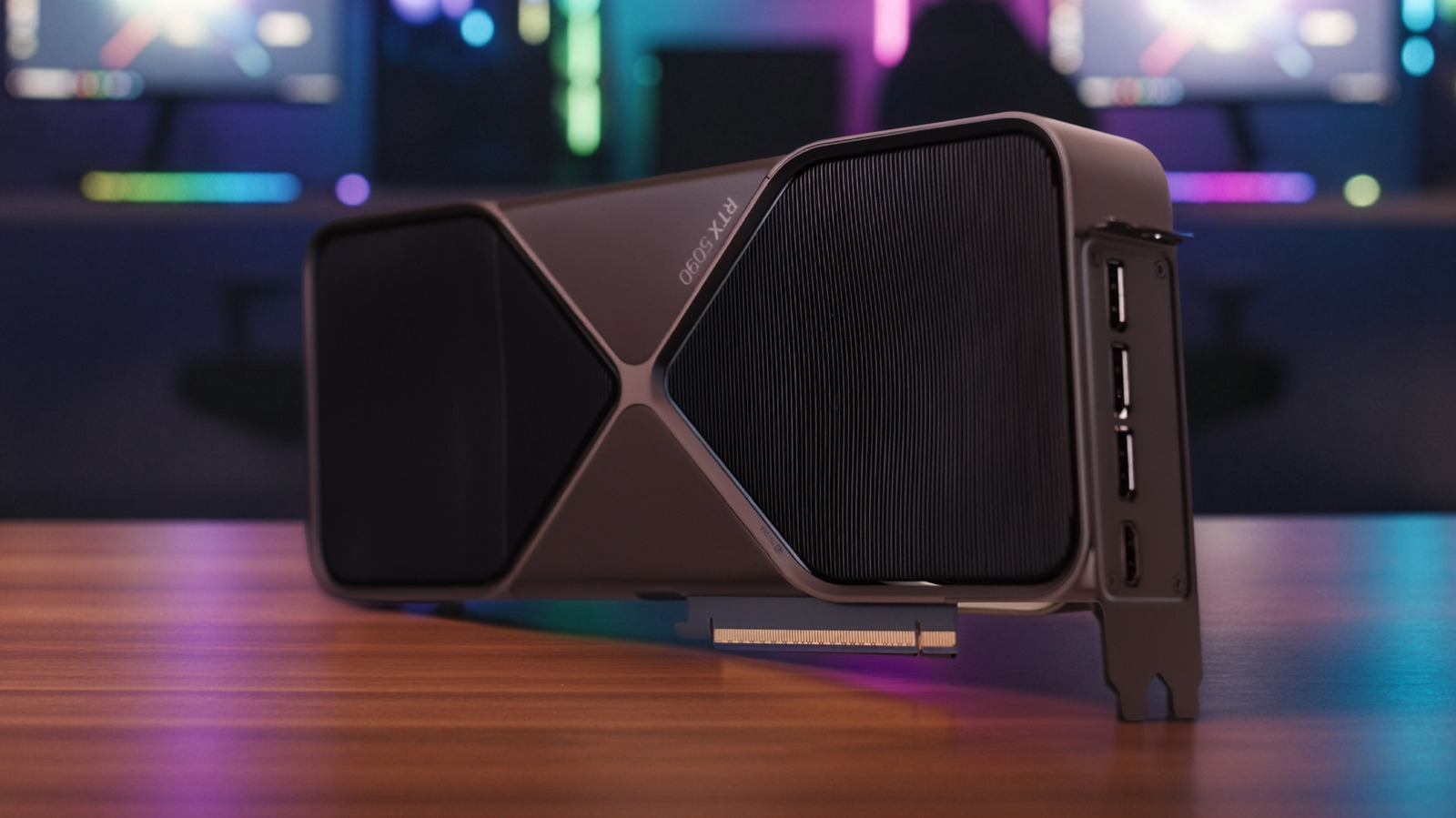
GPUs are the most expensive part of a gaming rig. Well, DDR5 RAM isn’t going down in price either, but this article is about graphics cards. It’s more important than ever to make sure GPUs are looked after properly, especially with the features that come with Nvidia GPUs, because over time they can degrade and eventually flatline. That argument can be made with any PC component, but a GPU takes the brunt of gaming systems thanks to overclocking and AAA gaming taking up more and more VRAM.
A GPU typically lasts about five to eight years, and most are replaced before they die. That’s set to change because memory shortages from the rise of AI data centers and alleged memory cartels mean making a graphics card last longer is a wise choice. In a market where gamers are picking up AM4 motherboards and DDR4 RAM, the writing is on the digital wall.
There are five straightforward habits users can adopt (some of which I do too) that will stretch a graphics card’s life and help avoid high temperatures, artifacting, crashes under load, slow frame rates, and the dreaded BSOD. In fact, quite a few of these tips come back around to temperature control, as electromigration and degradation
Good airflow and case cooling
The best advice I could give someone about a graphics card is: “Stay cool, bird boy.” Not only do I have Arnold Schwarzenegger in 1997’s “Batman & Robin” to thank for that quote, but it seriously is the best advice for GPU longevity. Sustained high temperatures accelerate wear and tear on the GPU chip and VRAM, so keeping the card below 85°C (and not above) generally helps with thermal throttling too.
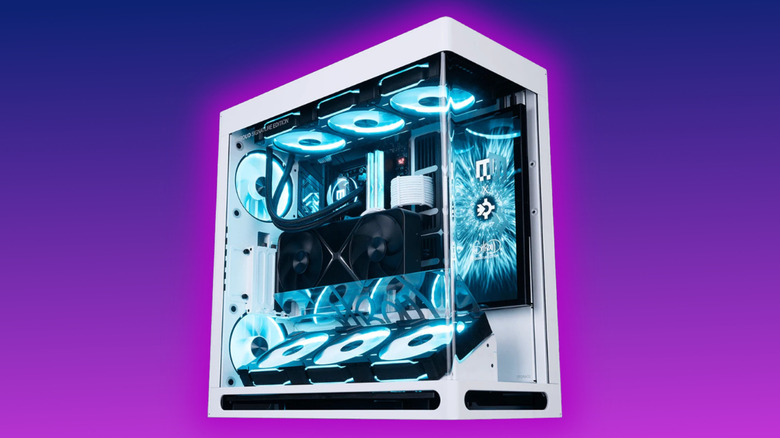
A big case and enough intake/exhaust airflow help significantly. Personally, I went for the MainGear Rush Artist Series with a total of ten case fans. That’s three intake, one rear exhaust, three top exhausts attached to the CPU liquid cooling radiator, and three airflow fans below the GPU.
Big GPUs like the upper Nvidia RTX 40 and 50 series, alongside AMD Radeon 9070XT, need airflow fans blowing toward them to help the three onboard fans dissipate heat properly through their giant heatsinks. Another great way to keep things cool and get surprising performance is to undervolt a GPU. Also known as underclocking, it’s a way to set lower voltage limits, which in turn keeps temperatures down and performance high.
Regular cleaning
Dust is a silent killer of graphics cards. Clogged fans and heatsinks act as insulation, raising temperatures and stressing the GPU and VRAM. This is easy maintenance if a user stays on top of it, since dust and microparticles will inevitably enter any gaming PC over time. I think of it as trying to run while wearing a snowsuit; eventually the wearer will overheat. This can cause GPUs to lower their internal clock speeds to keep temperatures down (if they’re set to do so automatically), which thermal-throttles performance and can seriously affect a graphics card’s longevity.
Once a month, take the PC case to a well-ventilated area and use an air blower, such as the Hoto Air Duster and Vacuum, to clear out dust; use soft brushes and a microfibre cloth to remove anything stubborn. If fans are stained with dirt, a drop of Isopropyl alcohol on a microfibre cloth should remove the rest. When checking a GPU or components for micro particles and trapped dust, use something like the Olight Arc Pro for its strong torchlight and UV settings to pick out anything missed on the first pass.
I would also recommend taking the graphics card out of the PC case once a year to give the fans and heatsink a proper blow-out and clean. Personally, I always keep my HOTO SnapBloq set handy for every screwdriver bit and polishing head I’ll need.
Undervolting
Chasing maximum clock speeds is best left to those who want to fit a custom liquid-cooling block onto their GPU, or use a graphics card that comes with an AIO liquid-cooling system. This ensures the GPU and VRAM get the best-case-scenario heat dissipation, although a solid air-cooled PC can handle it, as mentioned above.
Running a card at stock settings or undervolting it is far less stressful on graphics cards, helping avoid erratic behavior from an overheated GPU and VRAM. Underclocking caps the max voltage a GPU can draw, which keeps temperatures lower because the GPU and VRAM aren’t working as hard. For those worried about performance, research shows that the right amount of underclocking has little to no performance impact and, in some cases, can even improve performance by lowering temperatures.
The easiest way to undervolt a GPU is to download MSI Afterburner, software that lets users adjust voltage and clock speeds. Once installed, run a benchmark like MSI Kombustor to get the GPU’s base clock and voltage, then open the Voltage/Frequency Curve editor by pressing Ctrl + F. The curve has a series of little boxes and a light grey cross showing your clock-to-voltage speeds. Now it’s basically a matter of dragging a box up to the grey line to match the desired clock speeds, but with lower voltage. Dropping voltage in 50mV steps until MSI Kombustor crashes is a good way to find your GPU undervolting sweet spot.
Update drivers
Software updates protect hardware health, especially when it comes to drivers. That’s why Nvidia releases driver updates whenever a major game drops, ensuring graphics cards run at peak performance. Outdated drivers can cause instability and crashes because unaddressed bugs can mimic hardware issues like display failures. Malware can also cause similar issues, so a clean, updated system really pays off in the long run. As for the best Malware software, I can only speak from personal experience. Avast Premium Security doesn’t cost a ton and keeps my gaming PC and laptop clean. The free version does the job, but the paid version also focuses on scam protection and general online safety.
Updating graphics drivers is easy enough, and can be set up to update automatically for most models. For Nvidia, updateits auto software and driver app, and so on. In the program settings, there should be an auto-update option in the driver update section, but I always like to double-check once a week just in case. Ultimately, a bad driver won’t break a GPU, but it can cause issues that look like a GPU failure
Reapply thermal paste and monitor temperatures
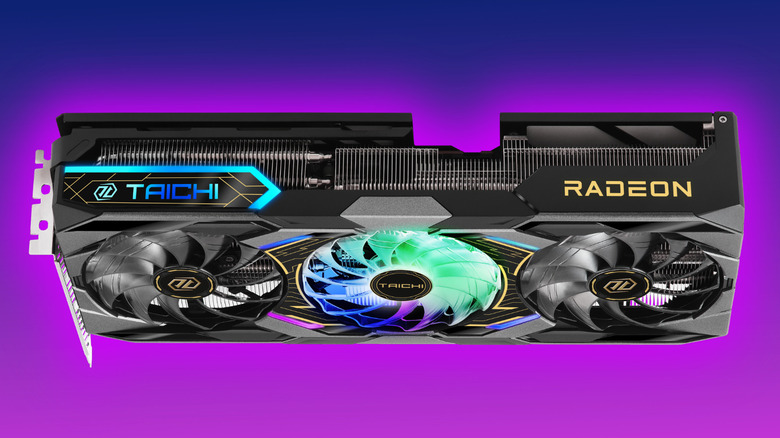
If you’ve had your GPU for a year or two, like me, or you’re considering a second-hand graphics card, replacing the thermal interface material (TIM) is one of the best ways to help your GPU last as long as possible. Like with a CPU, thermal paste and pads degrade and lose efficiency over time, which means the graphics card will also run hotter over time.
This process requires patience, though, but it’s not ridiculously hard. It’s a case of removing screws from the backplate that hold the heatsink, fans and casing together, taking care to watch out for any cables that need unplugging. Use isopropyl alcohol or specialized alcohol wipes to remove the old thermal paste or pad, then apply the recommended amount per the manufacturer’s guidelines. Even the same GPU grade can differ by manufacturer, so find guidance for your card’s exact make and model.
All this advice is meant to help users manage thermal levels in their graphics card, since that’s ultimately the main factor that degrades GPUs and VRAM over time. Of course, graphics cards can also ship with defects that are covered under warranty, such as the RTX 4090 power connector issue, so make sure to physically have a look at the card and make sure there’s nothing out of the ordinary, such as melted connectors and ports, in case there’s an issue.

1 Comment
Pingback: 'Aura farming': The video game-inspired youth trend sweeping Latin America - Comic Vibe