

It’s been over a decade since Rockstar released “Grand Theft Auto 5.” As expected, tech has advanced quite a bit since then, especially in the video and audio department. While PC users will have to wait, “Grand Theft Auto 6” launches November 19 on console platforms PlayStation 5 and Xbox Series S/X (and can be streamed via Xbox One). Fortunately, Sony and Rockstar confirmed ahead of launch that “Grand Theft Auto 6” will see a variety of visual enhancements you can acquire with the PlayStation 5 Pro, such as better image clarity with PlayStation Spectral Super Resolution (PSSR) AI upscaling and exclusive ray-traced shadows.
The unfortunate news is that higher framerate isn’t one of them, as the game is intended to run at 30 FPS, so you don’t necessarily need a TV or monitor with a supported high refresh rate — though it does give it some future headroom. Moreover, you may want to leave variable refresh rate (VRR) on in case the frame rate fluctuates. But note that since “Grand Theft Auto 6” targets 30 FPS, it may sit below the native VRR range of many TVs (usually 40 Hz or 48 Hz), which means VRR may not always engage. Using it provides a failsafe: if performance falls below your TV’s VRR range, low framerate compensation (LFC) — where your display and source support it — repeats frames to fix it.
Beyond that, the game is still meant to be enjoyed with high graphics fidelity and fantastic sound — meaning you’ll also want to triple-check that no settings interfere. That’s why you should definitely enable a few key TV settings to ensure you get the best developer-intended experience in “Grand Theft Auto 6.”
Turn on Game Mode or ALLM
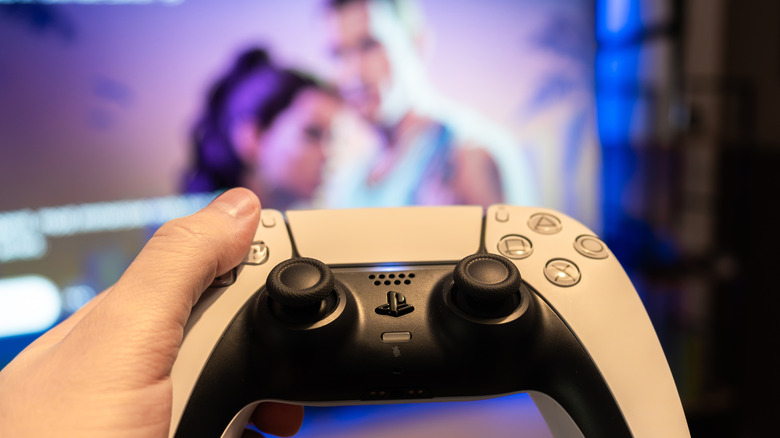
It’s vital to do this because you’ll want to ensure motion smoothing is off on your TV; sometimes, Game Mode takes care of that for you, though you can check through your TV’s picture or display settings (it may also be under the expert or advanced options in the same settings on some TV models) to see if that’s disabled.
Since “Grand Theft Auto 6” is meant to be played at 30 FPS, you really don’t want your TV inserting extra artificial frames automatically. That alone can add more input delay and distracting visual artifacts caused by fast-moving objects like cars.
Adjust your audio output settings
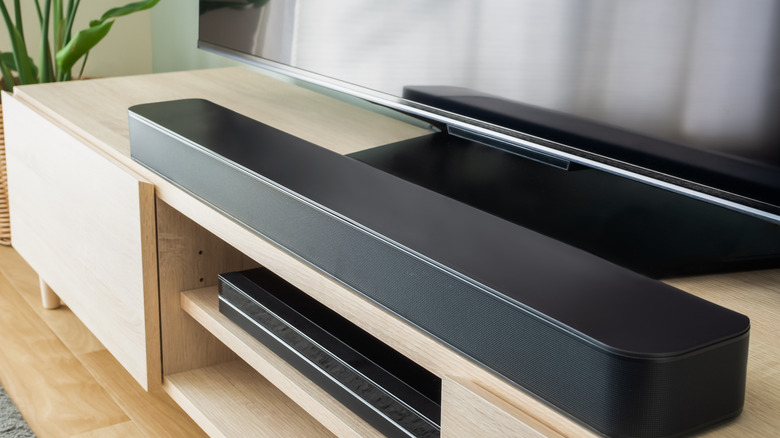
Your specific sound and audio output settings depend on your setup, like whether you have a connected soundbar or want to play audio through your headset or your TV’s internal speakers. Still, you’ll want to match them to the game — especially for spatial audio and to avoid unwanted compression. If your TV has a Game Sound Mode, turn it on, since it’ll reduce latency and enhance directional cues.
If you’re routing audio through an external soundbar or AV receiver, the main adjustment you’ll want to make before playing “Grand Theft Auto 6” is ensuring your TV’s digital audio output is set to Passthrough or Auto over HDMI eARC, and setting your console’s HDMI audio format to match your speaker setup (such as Dolby Atmos) to help avoid unnecessary audio conversion or downmixing.
Sony and Rockstar have also confirmed Tempest 3D AudioTech, so as a headphone listener, you’ll want to take full advantage of that on your PlayStation 5. To activate it, toggle on “Enable 3D Audio for Headphones” in your 3D Audio (Headphones) settings. You can also fine-tune your listening by going to “Create Personalized 3D Audio Profile.” Xbox players can find better headset audio options under “Volume & audio output” > “Headset format,” where you can choose between “Windows Sonic,” “Dolby Atmos,” or “DTS:X.”
Enable HDR and set your resolution
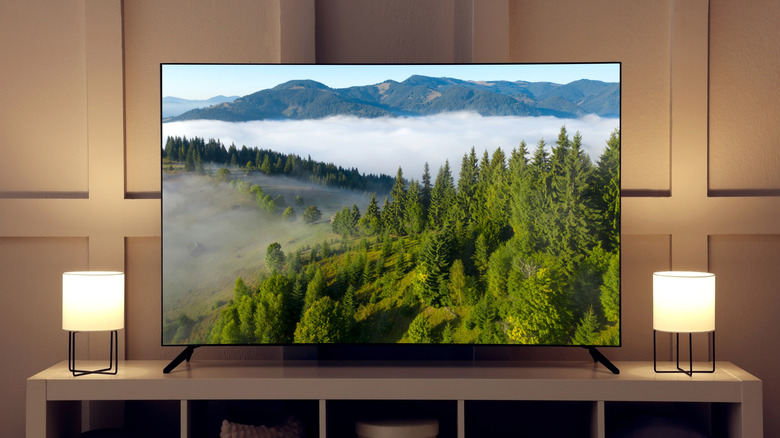
You absolutely should ensure that your monitor or TV can support the highest resolution possible. If you can play in 4K, you definitely should. Both current-gen PlayStation and Xbox consoles support 4K output, so it’s a waste not to use it if you can. You’ll want to make sure both the console and screen have 4K enabled, usually in the picture or display settings on each. On the PlayStation 5, the settings are called “Video Output”; on the Xbox Series S/X, go to “TV & display options” in “Settings.”
Second, make sure your console can support HDR on your TV and monitor. HDR is vital for “Grand Theft Auto 6” to avoid washed-out colors — there are plenty of neon-lit scenes and bright and dark areas around the map — and HDR preserves these details with much better accuracy when it’s calibrated correctly. Thankfully, it should also be pretty simple to enable, since you’ll find the option in the same menu where you added and checked 4K on both consoles — the option should contain “Calibrate” or “Adjust HDR” in them. For TVs with the HDR Gaming Interest Group (HGiG) setting, it’s recommended to enable it in the HDR picture settings to avoid applying additional dynamic tone mapping after you’ve calibrated with your console’s HDR setting.
As a bonus, you can also adjust color temperature settings, along with sharpness. Still, you’ll want to tweak your TV’s display settings after you start playing (rather than before), since every game is different and this is more about personal preference.
