

Fortnite parental controls are settings on your child’s Epic Games account, protected by a six-digit PIN that only you should know. They decide who your child can chat with, what they can buy, which islands they can open, and how long they can play on every device.
This guide shows where to find every setting, how to create and reset the PIN, and how to turn off parental controls when your child is ready. It also covers Cabined Accounts, console controls, and the separate Play Time and Create Time limits Epic added in September 2026.
How to set up Fortnite parental controls
To set up Fortnite parental controls, sign in to your child’s Epic Games account on the Epic website or open Parental Controls in the game, confirm a parent email address, and create a six-digit PIN. That PIN then locks every setting.
Both routes save to the same Epic Games account, so the controls follow your child to PlayStation, Xbox, Nintendo Switch, PC, and mobile. They also apply in Rocket League and Fall Guys. We recommend the website for the first setup, as the larger screen makes every option easier to review.
On the Epic Games website
To set up parental controls in a web browser, follow these steps:
- Go to Epic Games Parental Controls and sign in with your child’s Epic Games account.
- Select Parental Controls in the menu on the left.
- Enter a six-digit PIN in the Set Parental Controls PIN window, then enter it again to confirm.
- Work through each setting on the page and choose the options that suit your child.
Console players need one extra check. A PlayStation, Xbox, or Switch may use a different Epic account from the one you signed in to, and the controls only work on the account the console uses. Compare the Account ID on the website with the one in Fortnite’s Account and Privacy settings.
Inside Fortnite
To set up parental controls in the game on any platform, follow these steps:
- Launch Fortnite and select your Player Icon, the circle with your character’s image, in the top-right corner.
- Select the Menu icon, which looks like three stacked lines.
- Choose Parental Controls, then select Set Up Parental Controls.
- Enter and confirm an email address that you control as the parent.
- Create your six-digit Parental Controls PIN.
Pick a PIN your child can’t guess and that you don’t use anywhere else, as anyone who knows it can change every setting. If the account was made on a console and has no email address, Epic asks you to upgrade it with your email first, using its separate PlayStation, Xbox, or Nintendo help page.
What Fortnite parental controls can restrict
Most of the parental controls Fortnite offers sit in four groups: who your child talks to, what they can spend, what they can open, and how long they can play. The table below lists every current setting and what it changes, with the details in the sections that follow.
| Setting | What it controls |
|---|---|
| Epic Voice Chat Permission | Who your child can talk to in Fortnite’s voice chat |
| Epic Text Chat Permission | Who your child can message in Fortnite’s text chat |
| Filter Mature Language | Swear words in text chat, which are replaced with hearts |
| Require a PIN to Add Friends | Your PIN before your child sends or accepts an Epic friend request |
| Require a PIN for Epic Games Payments | Your PIN before real-money purchases through Epic’s payment system |
| Allow Paid Random Items | Whether V-Bucks can be spent on items with a random reward |
| Fortnite Content Ratings | The highest island rating your child can open without your PIN |
| Allow Creative Mode and Unreal Editor for Fortnite | Whether your child can build islands or join friends who are building |
| Epic Games Store and Fab | The highest rating for new games your child can get from the Epic Games Store |
| Sign in with Epic | Whether your child’s Epic account can sign in to games and sites outside Epic |
| Time Limit Controls | Daily limits, play windows, and separate Play Time and Create Time limits |
| Time Reports | A daily breakdown of time spent in Fortnite, plus an optional weekly email |
| AI Permissions | Whether your child can talk or type to AI features, such as AI characters in Fortnite |
You can also sign up for daily emails from Epic whenever anything on your child’s account changes. It’s important to note that some limits depend on the age on the account rather than your choices, so a few options stay locked for younger players even after you enter the PIN.
How to limit voice chat, text chat, and friend requests
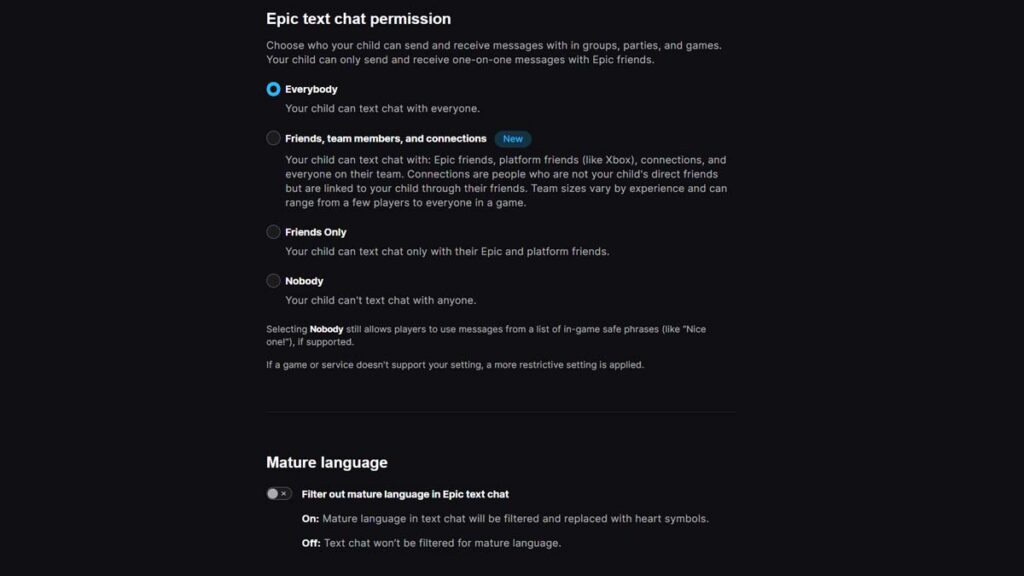
Fortnite has separate permissions for voice chat and text chat, and each one offers the same four options. Epic also caps the highest option by age, so a parent can’t open chat to every player in a match for a child under 13.
| Option | Who your child can chat with | Available from |
|---|---|---|
| Everybody | Anyone, including strangers in public matches | Age 13 |
| Friends, team members, & connections | Epic and console friends, everyone on their team, and people linked to them through friends | Age 10 |
| Friends Only | Epic and console friends only | Any age |
| Nobody | No one, apart from preset safe phrases | Any age |
Players who say they are under 18 start with chat set to Nobody, but a teenager can change their own settings unless Parental Controls limit them. Fortnite’s language filter only works on text, so we recommend Friends Only or Nobody for voice chat on a younger child’s account.
Turning voice chat on also turns on voice reporting, which keeps a rolling five minutes of audio on each device and sends it to Epic only when someone files a report. It is always on for players under 18, and Epic has passed serious threats to the FBI, as our story on a Fortnite voice chat arrest shows.
The Filter Mature Language setting replaces swear words in text chat with hearts. Epic keeps it switched on for every player under 13 and in Game Channels, the chats shared by everyone on the same island, while players under 16 start with it turned on by default.
Require a PIN to add friends asks for your PIN every time your child sends or accepts an Epic friend request, which gives you a chance to ask who the person is. However, it doesn’t cover PlayStation, Xbox, Steam, or Nintendo friend lists, which follow each platform’s own controls.
How to set Fortnite time limits
Fortnite time limits are set in the Time Limit Controls section of Parental Controls, on the website or in the game. You can cap the total time per day, choose time windows when play is allowed, or set separate limits for playing and creating.
To set a time limit, follow these steps:
- Open Parental Controls on the Epic website or in Fortnite and enter your PIN.
- Open the time limit settings.
- Choose a daily limit, or add time windows with a limit inside each window.
- Decide whether your child can request more time as the limit approaches.
These settings allow you to split the limit into Play Time and Create Time. Play Time covers browsing and playing islands, while Create Time covers building and testing islands in Fortnite Creative or Unreal Editor for Fortnite (UEFN). Playtesting unpublished islands also counts as Create Time.
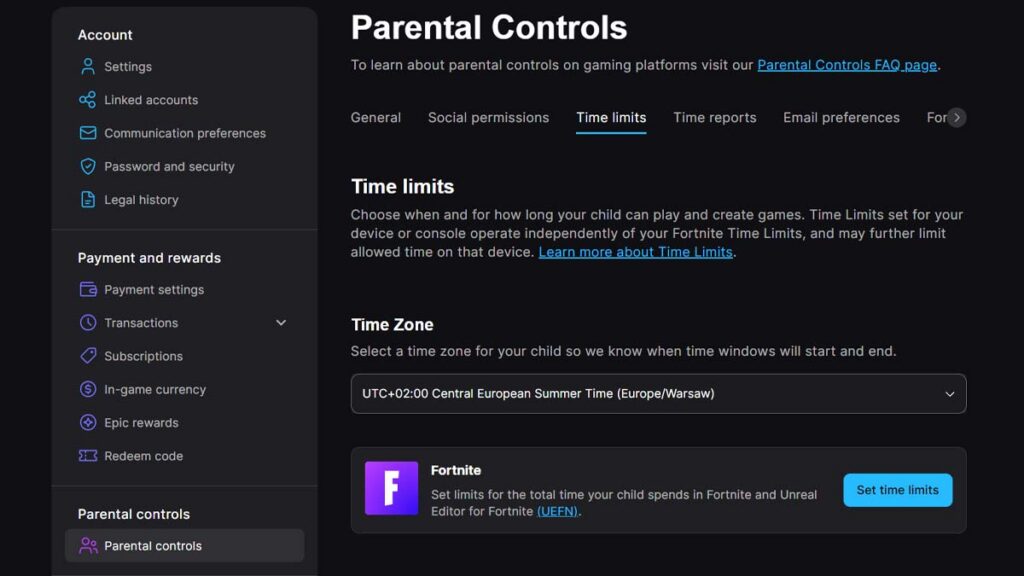
Your child sees a warning in the game when 30 minutes remain, and Fortnite locks until the next day or the next window once time runs out. With separate limits, a child who runs out of Play Time can still build in Creative, but can’t play, open the Locker, or browse the Shop.
The limit follows the account across every device, and the clock pauses when Fortnite goes into Sleep Mode. Console and phone limits run separately, as Epic’s timer only counts time in Fortnite and UEFN, so a stricter device limit can still end a session first.
Time Reports show a daily breakdown of your child’s time in Fortnite and UEFN for up to four weeks, including any extra time you granted. With separate limits on, the report splits playing and creating, and a weekly summary email can be switched on from the same section.
How to give your child more time
With Request for More Time switched on, your child can ask for extra time from inside Fortnite once 30 minutes or less remain, and Epic emails you a link to approve it. There is no request option inside UEFN, and with separate limits you choose whether requests are allowed for Play Time, Create Time, both, or neither.
You can also add time on the spot without a request, and it applies immediately. To do that in Fortnite, follow these steps:
- Select your Player Icon to open the Sidebar, then open the main menu.
- Choose Time Limits & Reports.
- Select Add More Time and enter your PIN.
- Pick how much time to add.
How to stop unwanted purchases and V-Bucks spending in Fortnite
To stop unwanted purchases in Fortnite, turn on Require a PIN for Epic Games Payments. Every real-money purchase made through Epic’s own payment system, including V-Bucks packs and Epic Games Store games, then needs your PIN before it goes through.
However, the PIN has two issues. First, it doesn’t cover purchases on PlayStation, Xbox, Nintendo, or Steam stores, which use each platform’s wallet. Also, it doesn’t stop your child spending V-Bucks already on the account, whether they were bought or earned in the game.

Accounts registered as under 13 also get a $100 daily limit on Epic payments across Fortnite, Rocket League, Fall Guys, and the Epic Games Store, and only your PIN can override it. Switching off Allow Paid Random Items stops V-Bucks being spent on random-reward items, which some creator-made islands sell.
Epic suggests removing saved payment methods on PC, and a Fortnite gift card makes a fixed budget instead. Gift cards also work on Cabined Accounts, although not for Fortnite Crew. On consoles, set a spending limit in the platform’s family settings, as Epic’s PIN never sees those payments.
If a V-Bucks purchase slips through, Cancel Purchase undoes it within 24 hours as long as the item hasn’t been used or equipped. After that, each account holds up to three Return Tickets for items bought in the last 30 days, although you can’t return purchases made on creator-made islands.
How to change or reset your Fortnite parental controls PIN
To change your Fortnite parental controls PIN, sign in to your child’s account on the Parental Controls page, enter the current PIN, and select Change PIN. If you’ve forgotten it, the Forgot your PIN? option sends reset instructions to the parent or guardian email on the account.
To reset or change the PIN, follow these steps:
- Go to Parental Controls and sign in with your child’s Epic Games account.
- Enter your current six-digit PIN and select Confirm.
- If you don’t know it, select Forgot your PIN?, then Confirm, and follow the instructions in Epic’s email.
- Under Parental PIN at the top of the page, select Change PIN.
- Enter the new PIN in the pop-up window and select Change PIN again.
Reset emails for a child’s account go to the parent or guardian address rather than to your child, so check that inbox and its spam folder first. Epic’s Parent/Guardian support form handles reset errors, and you have 15 minutes to complete it once you start.
If you no longer have access to the guardian email at all, Epic asks you to recover it through your email provider first. When that fails, sign in to your child’s Epic account and submit a support request from there to update the address.
How to turn off parental controls in Fortnite
To turn off parental controls, Fortnite and the Epic website both ask for the six-digit PIN, and then you switch each restriction off one by one. You can never delete the PIN itself, but a PIN on its own restricts nothing.
To turn off Fortnite parental controls on the website, follow these steps:
- Go to the Parental Controls and sign in with your child’s Epic Games account.
- Enter your six-digit PIN.
- Set voice and text chat to the widest option the account’s age allows.
- Switch off Filter Mature Language, Require a PIN to Add Friends, and Require a PIN for Epic Games Payments.
- Raise Fortnite Content Ratings to Teen and allow Creative Mode and UEFN.
- Turn off time limits, then review Paid Random Items, Sign in with Epic, and AI Permissions.
The same settings can be changed from Parental Controls inside Fortnite after you enter the PIN. If the in-game screen shows a Disable button at the bottom, it asks you to confirm before it switches restrictions off, and the PIN still stays on the account afterwards.
What stays on after you turn parental controls off
Some limits come from your child’s age rather than from Parental Controls, so entering the PIN can’t remove them. These stay in place until your child is old enough, or until you complete consent on a Cabined Account:
- Chat caps: Friends Only is the widest option under 10, and Everybody only unlocks at 13.
- Language filter: always on for players under 13, and in Game Channels for everyone.
- Voice and text reporting: always on for players under 18.
- Spending cap: the $100 daily limit on Epic payments for under-13s, unless you enter the PIN for a purchase.
- Cabined restrictions: chat, real-money purchases, and the other locked features until you give consent or your child reaches the age threshold.
Console and phone controls are separate too, so turning off parental controls in Fortnite won’t change a PlayStation spending limit or an Xbox chat setting. Epic doesn’t list an age at which Parental Controls you’ve set switch off by themselves, which is why the PIN holder has to change them.
How to turn off parental controls without the PIN
There is no way to turn off parental controls without the PIN, and Epic Games Support can’t remove it. The legitimate route is the Forgot your PIN? reset, which goes to the parent or guardian email on a child’s account, so a child who wants fewer restrictions needs to ask the person who set them.
If the restrictions come from a wrong birthday on the account, correct the age instead. Parents can request the change through Epic’s Parent/Guardian form with the correct date of birth, while players aged 18 or over ask through Epic’s Support Assistant and complete age verification.
If your child plays on more than one device, our guide to Fortnite crossplay and cross-progression explains how to link every console to one Epic account, so these controls follow them everywhere. For new outfits that don’t cost V-Bucks, our list of free Fortnite skins shows how to claim the current ones.
Frequently Asked Questions
Does Fortnite have parental controls?
Yes, Fortnite’s parental controls are part of your child’s Epic Games account and are protected by a six-digit PIN. They cover voice and text chat, friend requests, real-money purchases, island age ratings, Creative mode, time limits, and AI features, and they apply on every platform.
Where are parental controls in Fortnite?
In Fortnite, select your Player Icon in the top-right corner, open the Menu icon, and choose Parental Controls. The same settings are on the Epic website.
Can you turn off parental controls on Fortnite without the PIN?
No, the PIN is needed to change or switch off any restriction, and Epic Games Support can’t remove it.
Can your child talk to strangers on Fortnite?
It depends on the chat settings. Under-18 accounts start with chat set to Nobody, and players under 13 can’t be set to Everybody, although the next option still includes teammates your child doesn’t know.
Can you see your child’s Fortnite chat?
No, Fortnite’s parental controls don’t show messages or keep recordings for parents. Voice and text reporting only send recent chat to Epic’s moderators when a player files a report. You can see Time Reports, which show how long your child plays each day, and the account’s purchase history.
What age is Fortnite for?
Fortnite Battle Royale is rated T for Teen by the ESRB and PEGI 12 in Europe. Each island has its own rating, so a content rating of Everyone 10+ lets a younger child play lower-rated islands.
